Assets
Learn about the Asset view, a central repository for managing all resources used in OasisW projects.
Here you can create, upload, delete, inspect, and edit assets.
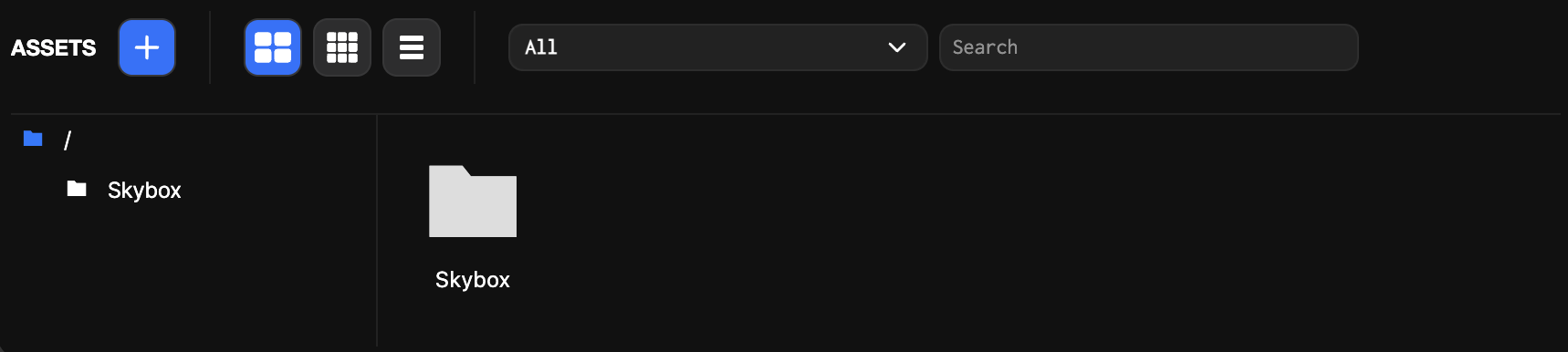
Folder Hierarchy
- Organize assets in a folder tree structure in the folder view.
- Create new folder
- Click Add Asset(+) button → Select Folder.
- Or right-click on desired folder → Select New Asset → Folder.
- Rename folder
- Click folder in folder view then modify name in Inspector.
- Delete folder
- Click folder in folder view → Click Delete.
- Or right-click folder → Click Delete.
- Reorganize structure by dragging and dropping between folders.
Asset Creation and Upload
- Drag and drop computer files into asset view for automatic upload and import.
- Certain assets can be created directly using the Add Asset(+) icon.
- Delete assets by right-clicking → Click Delete.
Asset Editing
- Double-click text-based assets (text, json, shader, html, css, script) to open and edit them.
- Generate and apply code using AI.
- Detailed AI Guide: Refer to Code Generation.
Asset Information Display
- Selecting an asset thumbnail displays detailed information in the inspector.
Filtering
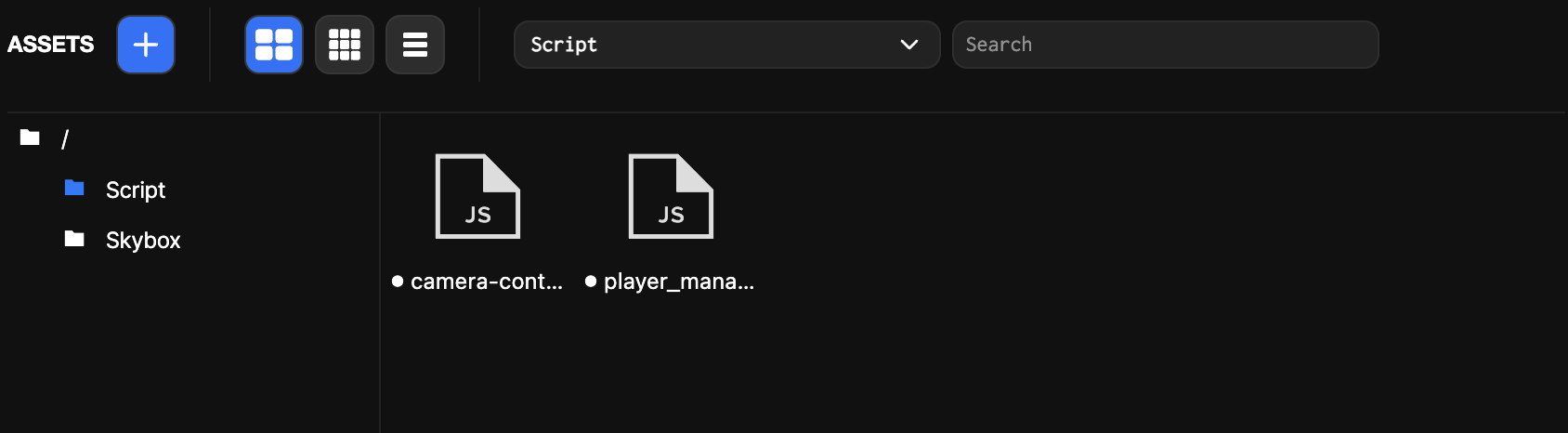
- Use the filter dropdown menu to select which asset types to view.
Search
- Enter text in the search box to filter assets in the project in real-time.
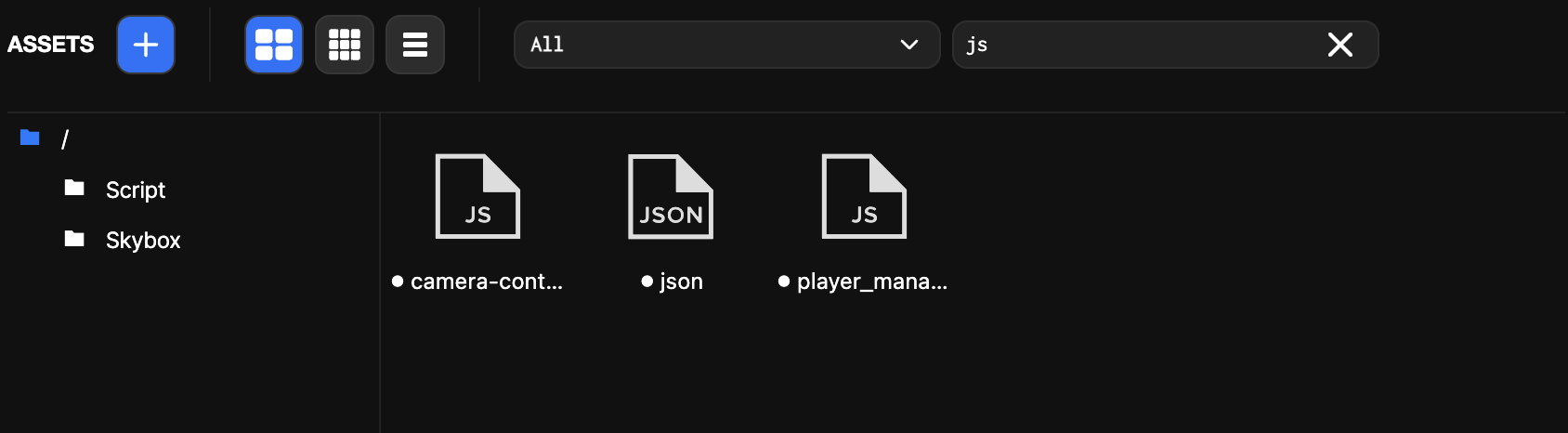
- Search types
- ID: Enter unique ID to display only exactly matching assets.
- RegExp: Add
*before search term to use regular expressions.
Example)*.*searches all assets.
Drag and Drop
- Drag and drop assets within folder hierarchy to move them.
- Supports multi-selection (Ctrl+A to select all assets in current folder).
- Drag and drop into asset slots in inspector (component properties or script properties).
- Model, material, and cubemap assets can be dragged and dropped directly into the viewport.
Copy & Paste Between Projects
- Select asset or multiple assets then right-click → Click Copy.
- Right-click in target project's asset view → Click Paste.
- When copying, asset dependencies (e.g., materials, textures referenced by models) are also copied.
- Even if assets with the same name exist, new assets are created instead of overwriting.