Interface
Learn about OasisW's basic interface and tools.
Opening a Scene
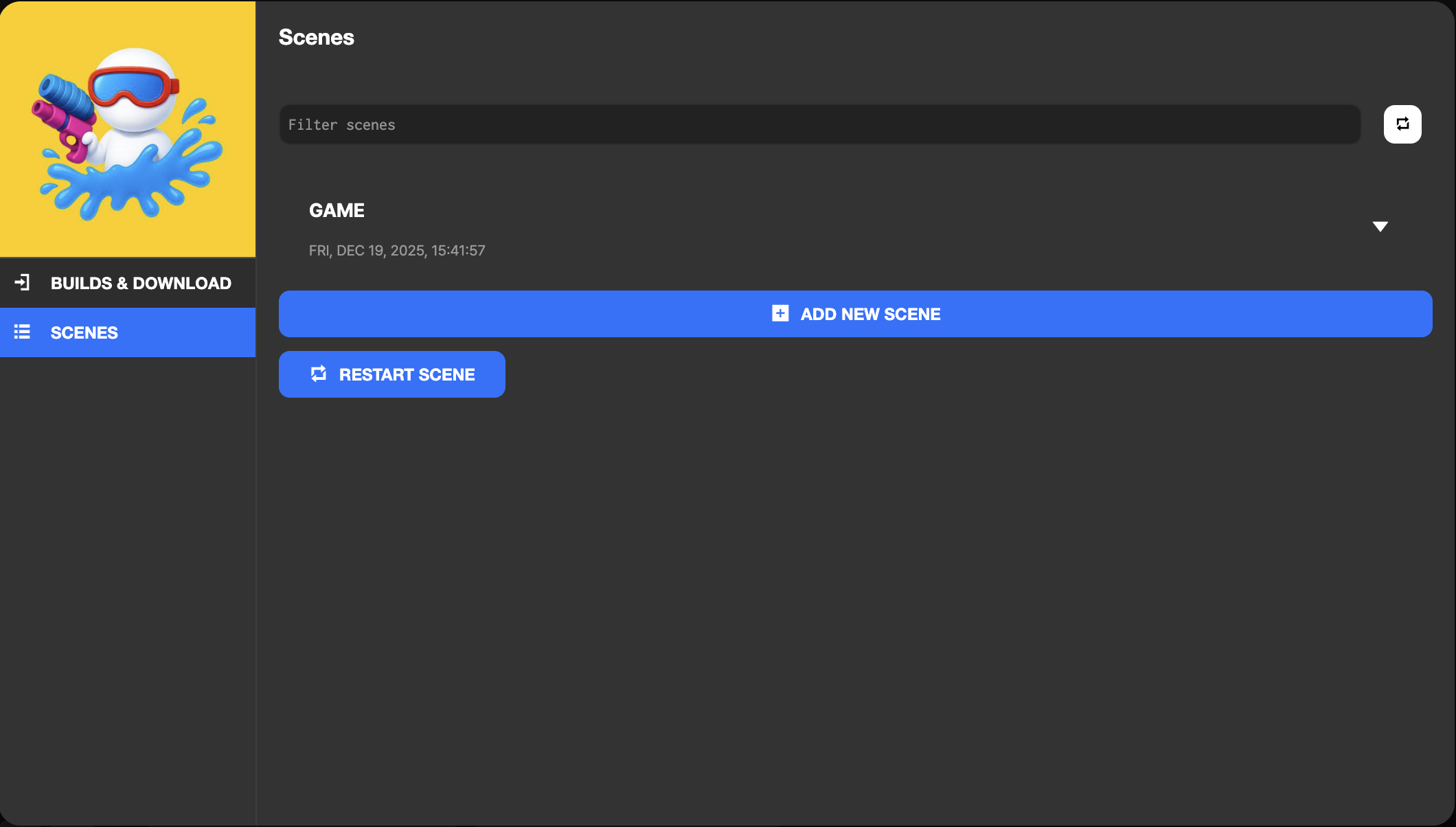
When you open a project, a scene selection screen is displayed, and you can start working by clicking on a scene in this screen.
Once you open a scene, you can start game development work using various tools and views.
Main Interface
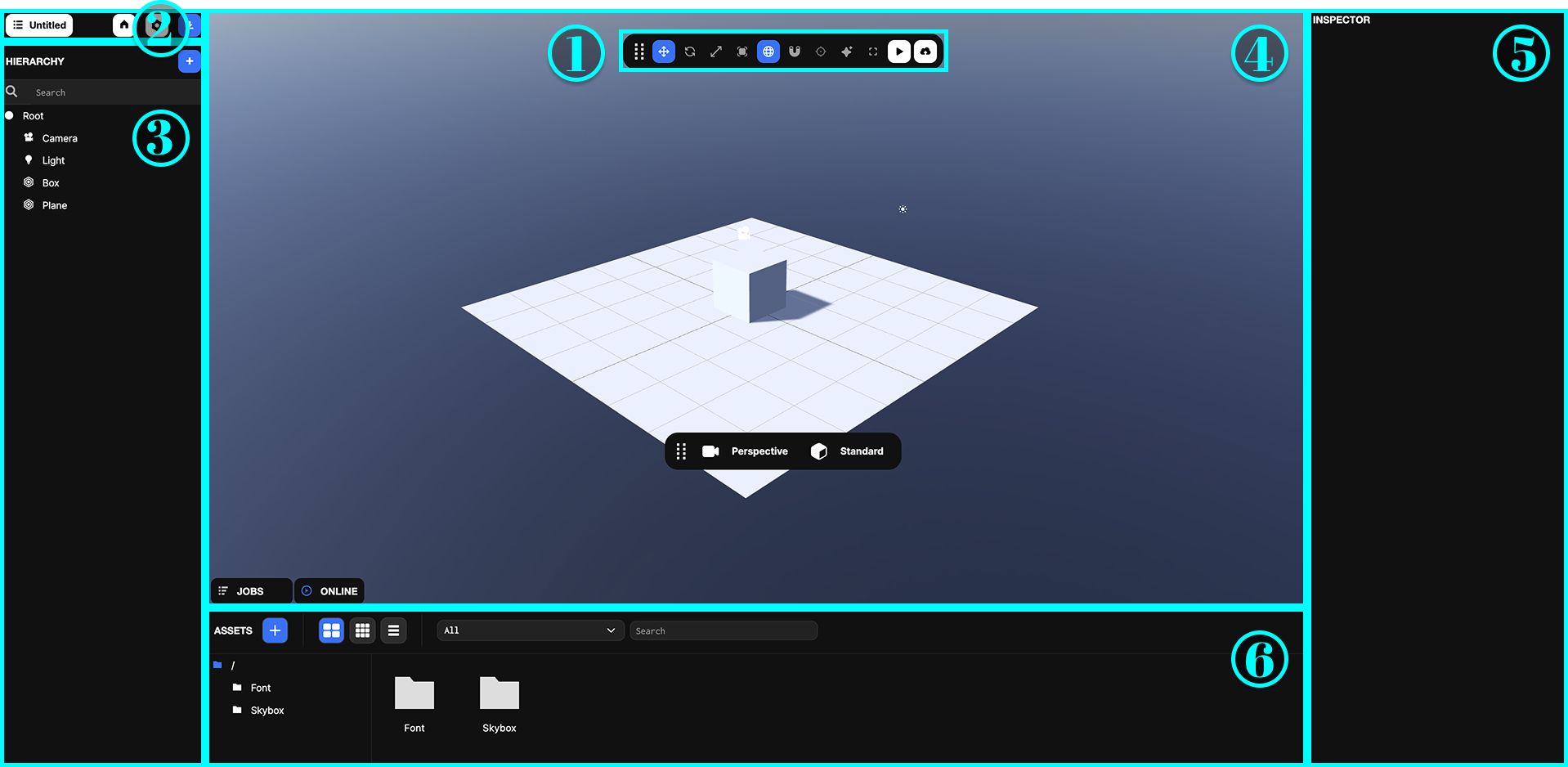
1. Toolbar
Learn about each button and shortcut in the toolbar, as well as additional tools.
2. Project Toolbar
Learn about tools related to project management in the project toolbar.
3. Hierarchy
Learn about Entity types managed in the hierarchy view and how to manage hierarchical structures.
4. Viewport
Learn about various viewport modes, control methods, and rendering options.
5. Inspector
Learn about the component list in the inspector view, property editing methods, and component management.
6. Assets
Learn about asset types managed in the asset view, folder organization tips, and asset optimization methods.