Project Toolbar
Learn about project management-related tools in OasisW's project toolbar.
Features
| Image | Button | Description |
|---|---|---|
 | Manage Scenes | Opens scene selection screen |
 | Home | Go to project selection window |
 | Settings | Project environment settings |
 | Publish/Download | Download built project |
Manage Scenes
- Function: Opens the scene selection screen.

Settings
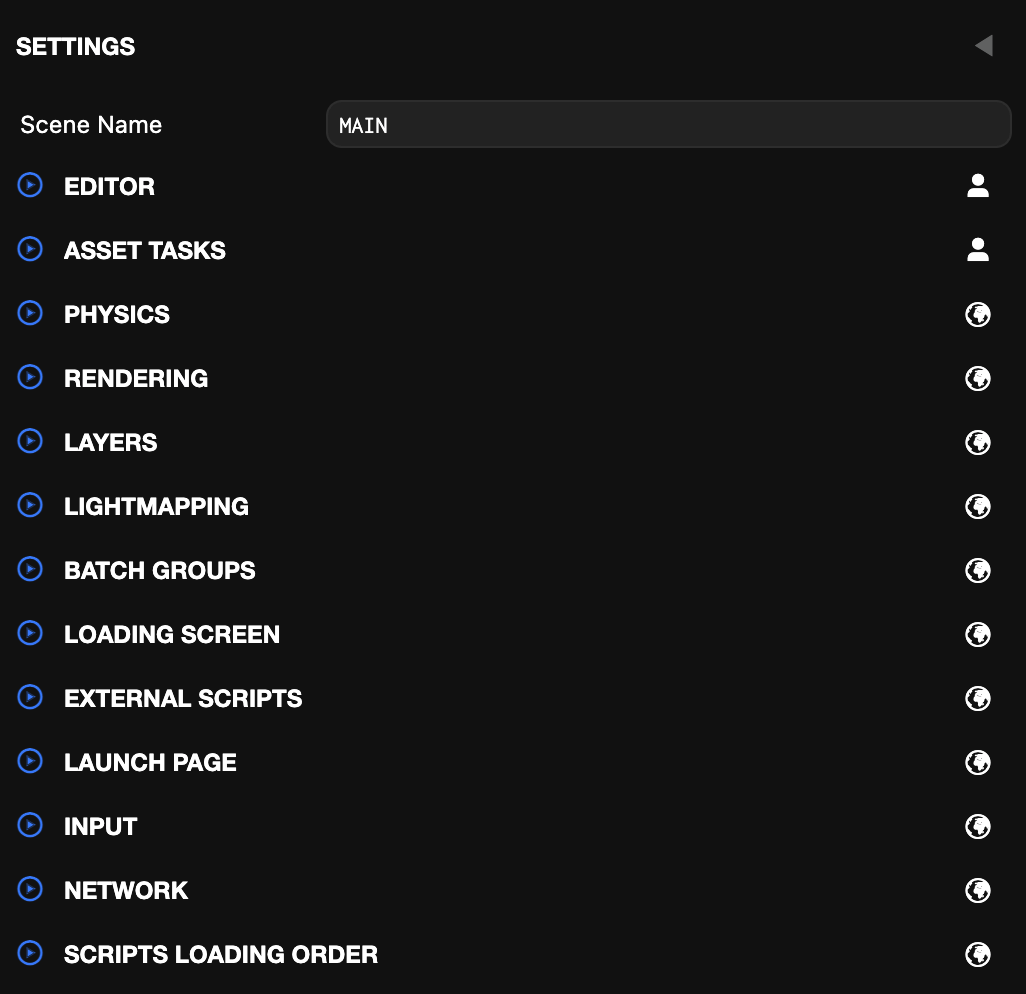
- Scene Name
- Change the scene name to make it identifiable in the project.
- Editor
- Panel for adjusting overall project environment settings.
- Asset Tasks
- Create Atlases : If enabled, both Texture and Texture Atlas assets are created when importing textures.
- Create FBX Folder : When bringing FBX files, automatically creates a dedicated folder for that asset to organize FBX and related texture, material, and animation data in one place.
- Physics
- Physics Library: Option to set the physics engine to use, clicking Import Ammo button automatically adds Ammo folder to the project.
- Gravity: Gravity value applied to all physics objects.
- Rendering
- Ambient Color: Sets global ambient light color.
- Skybox: The skybox is a cubemap asset rendered behind your 3D scene. This lets you use a set of six 2D images to display the distant world beyond the 3D models in your scene. To add a skybox, create a cubemap asset and assign it to the cubemap slot in the settings panel. Note: If you are using a prefiltered cubemap, the skybox is used as the default environment map for all physical materials.
- Type: Select the projection used to render the skybox cubemap. Options: Infinite (rendered at infinity), Box (mapped to a box mesh), Dome (mapped to a hemispherical dome).
- Intensity: The skybox intensity, used to match exposure levels.
- Rotation: Rotation of the skybox.
- Mip: Mip level of the prefiltered skybox. Higher values select lower-resolution, more prefiltered (blurred) mips.
- Clustered Lighting: Enable clustered lighting.
- Cells: Number of cells per world-space axis used to subdivide the space containing lights.
- Max Lights Per Cell: Maximum number of lights a cell can store.
- Cookies Enabled: Clustered lights support cookies.
- CookieAtlasResolution: Resolution of the atlas texture storing all non-directional cookie textures.
- Shadows Enabled: Clustered lights support shadows.
- Shadow Atlas Resolution: Resolution of the atlas texture storing all non-directional shadow textures.
- Shadow Type: The type of shadow filtering used by all shadows.
- Area Lights Enabled: Clustered lights support area lights.
- Exposure: Adjusts overall scene brightness.
- Fog: Sets fog type (None, Linear, Exponential, Exponential Squared), color, range, and density.
- Resolution Width: The width of your application in pixels.
- Resolution Height: The height of your application in pixels.
- Resolution Mode: Resolution Mode decides whether the canvas resolution will change when it is resized.
- Fill Mode: Sets canvas size adjustment method. (None, Keep aspect ratio, Fill window)
- Device Order: The order in which attempts are made to create the graphics devices.
- Enable WebGPU: When enabled, the application will try to use WebGPU if available.
- Enable WebGL 2.0: When enabled, the application will try to use WebGL 2.0 if available.
- Power Preference: Provides a hint to WebGL regarding the preferred power mode: Default (browser decides), High Performance (prioritize rendering performance), or Low Power (prioritize power saving).
- Anti-aliasing: When disabled, anti-aliasing is disabled for the back buffer.
- Device Pixel Ratio: Sets whether to apply device pixel ratio.
- Transparent Canvas: Enables alpha blending for main canvas.
- Preserve Drawing Buffer: Sets whether to preserve buffer when creating WebGL context.
- Layers
- Creates/manages layers for rendering order and grouping.
- Lightmapping
- Size Multiplier / Max Resolution: Adjusts lightmap size and sets maximum resolution.
- Mode: Selects Color Only or Color and Direction.
- Filter / Range / Smoothness: Sets runtime lightmap blur filter and intensity.
- Ambient Bake / Samples / Sphere Part: Sets ambient light baking.
- Occlusion Brightness / Occlusion Contrast: Adjusts shadow contrast.
- Batch Groups
- Groups models and UI elements to optimize draw calls.
- Loading Screen
- Specifies script to display application loading screen.
- External Scripts
- Specifies external script URLs to load with
<script>tags.
- Specifies external script URLs to load with
- Launch Page
- Add essential headers to the start page to enable SharedArrayBuffer.
- SharedArrayBuffer is required for some advanced features such as multithreaded physics.
- Input
- Enables/disables input devices (mouse, keyboard, touch, gamepad, etc.) to use in the project.
- Network
- Asset Retries: The maximum number of times to retry loading an asset if it fails to load. If an asset request fails, it will be retried with exponential backoff.
- Scripts Loading Order
- Sets script loading order to prevent dependency issues.
Publish/Download
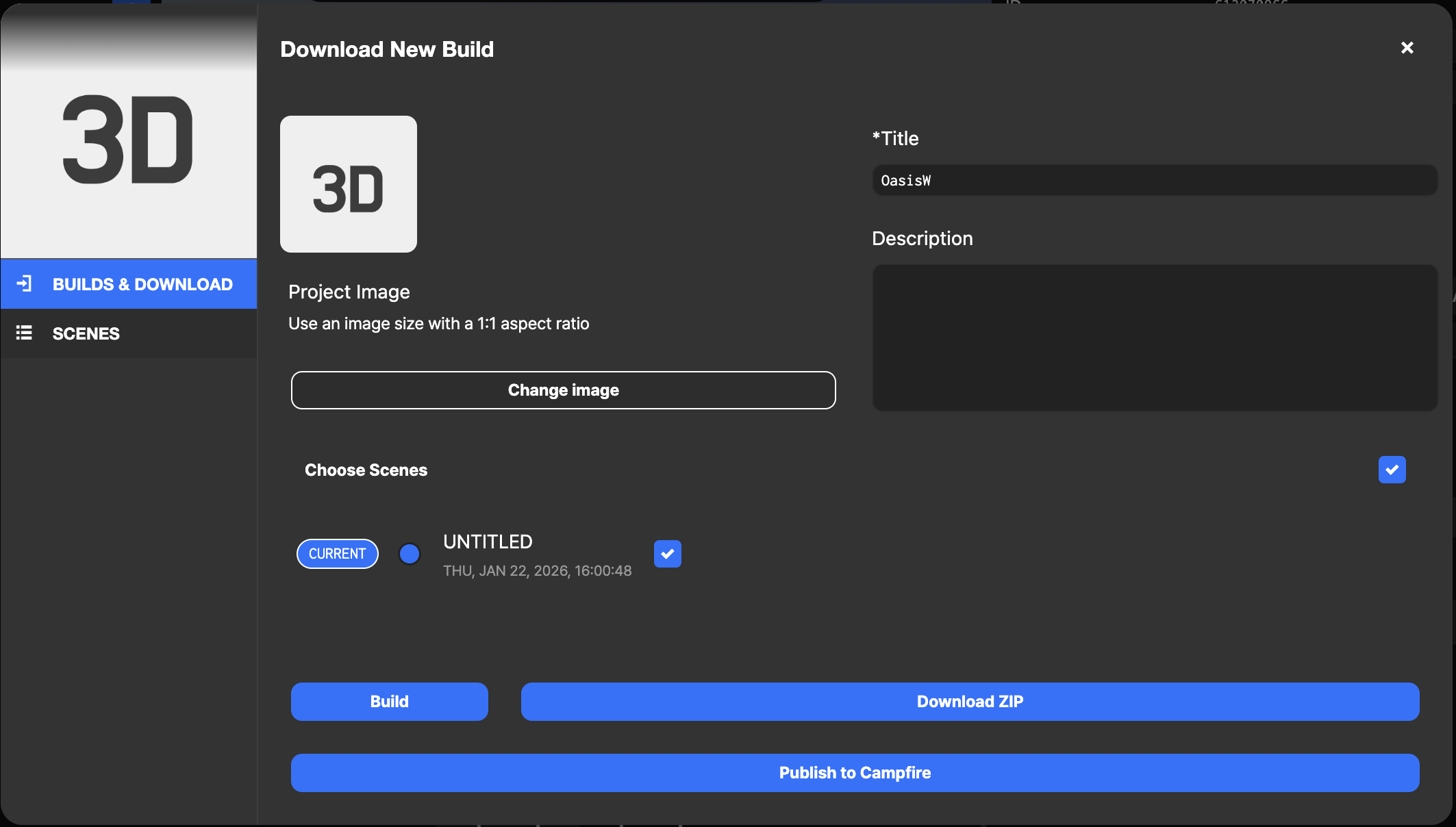
- Change Image: Select the image to use when downloading. (Default image is applied if not selected.)
- Choose Scenes: Select the first scene to be shown when starting.
- Title: Enter the project title.
- Description: Enter the project description.