Using Templates
Learn how to reuse identical game objects using templates in OasisW.
What is a Template?
- Prevents repetitive creation of identical objects.
- Maintains consistent settings and properties.
- Enables rapid project development.
- Provides efficient asset management.
Creating Templates
Step 1: Select Object to Make into Template
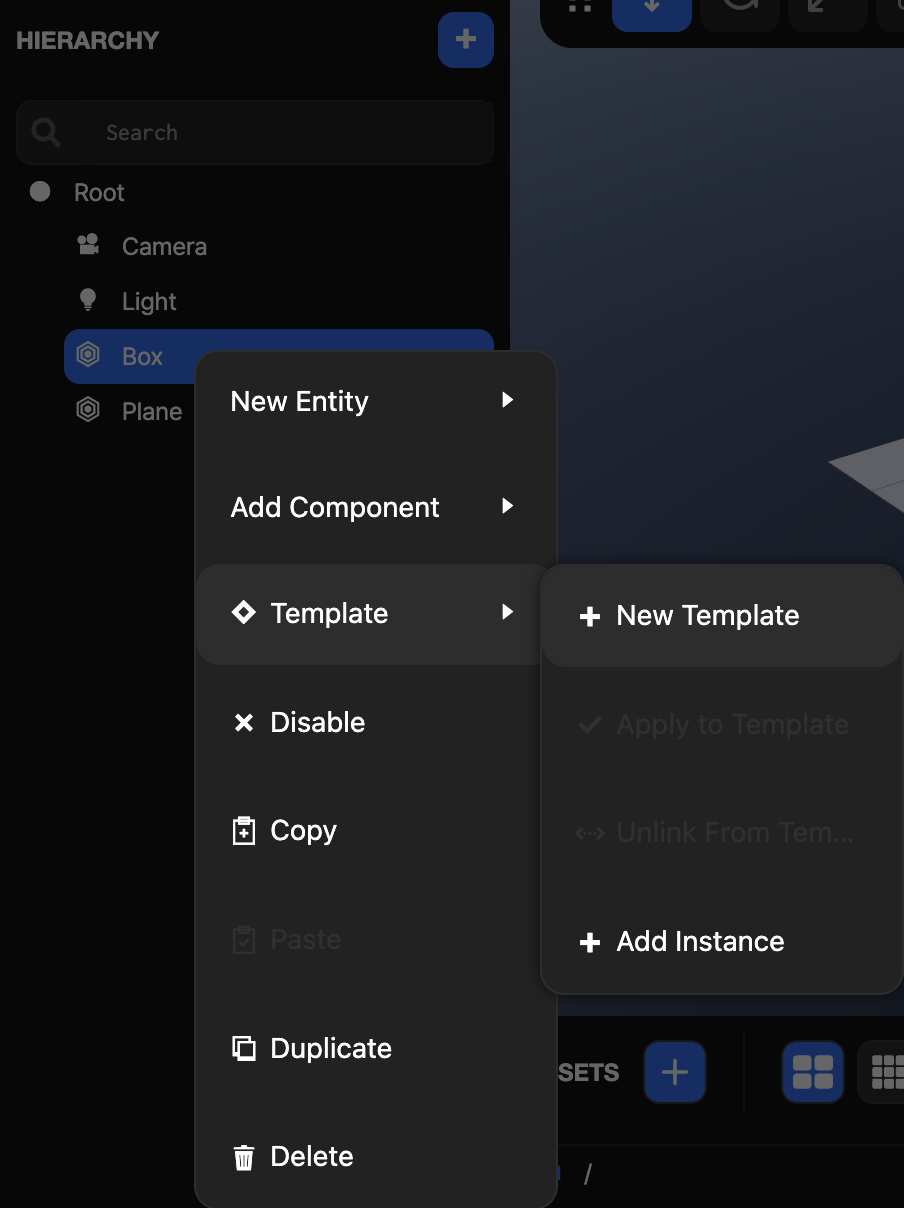
- Select the object to make into a template in the Hierarchy view.
- Click Template → New Template.
Step 2: Check Template
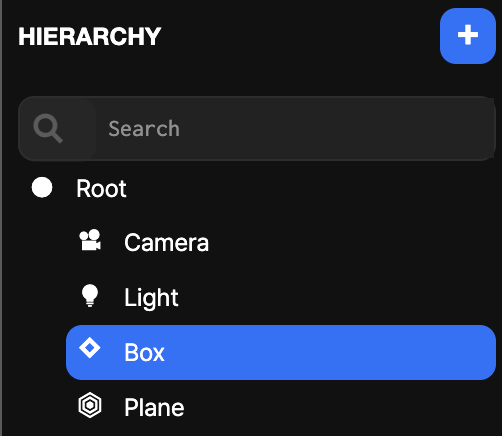
Objects made into templates are created in both Hierarchy view and Asset view.
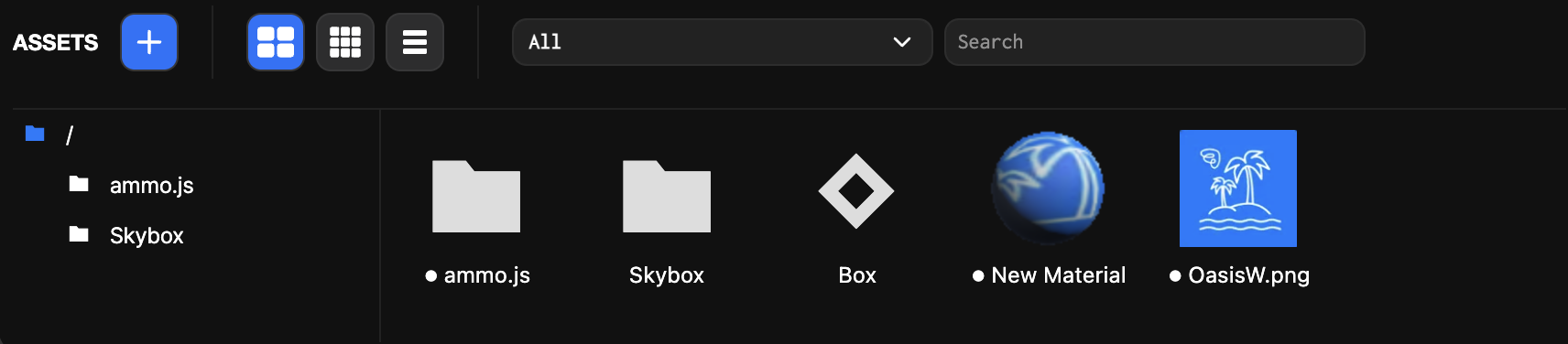
Using Templates
Step 1: Create Template Instance
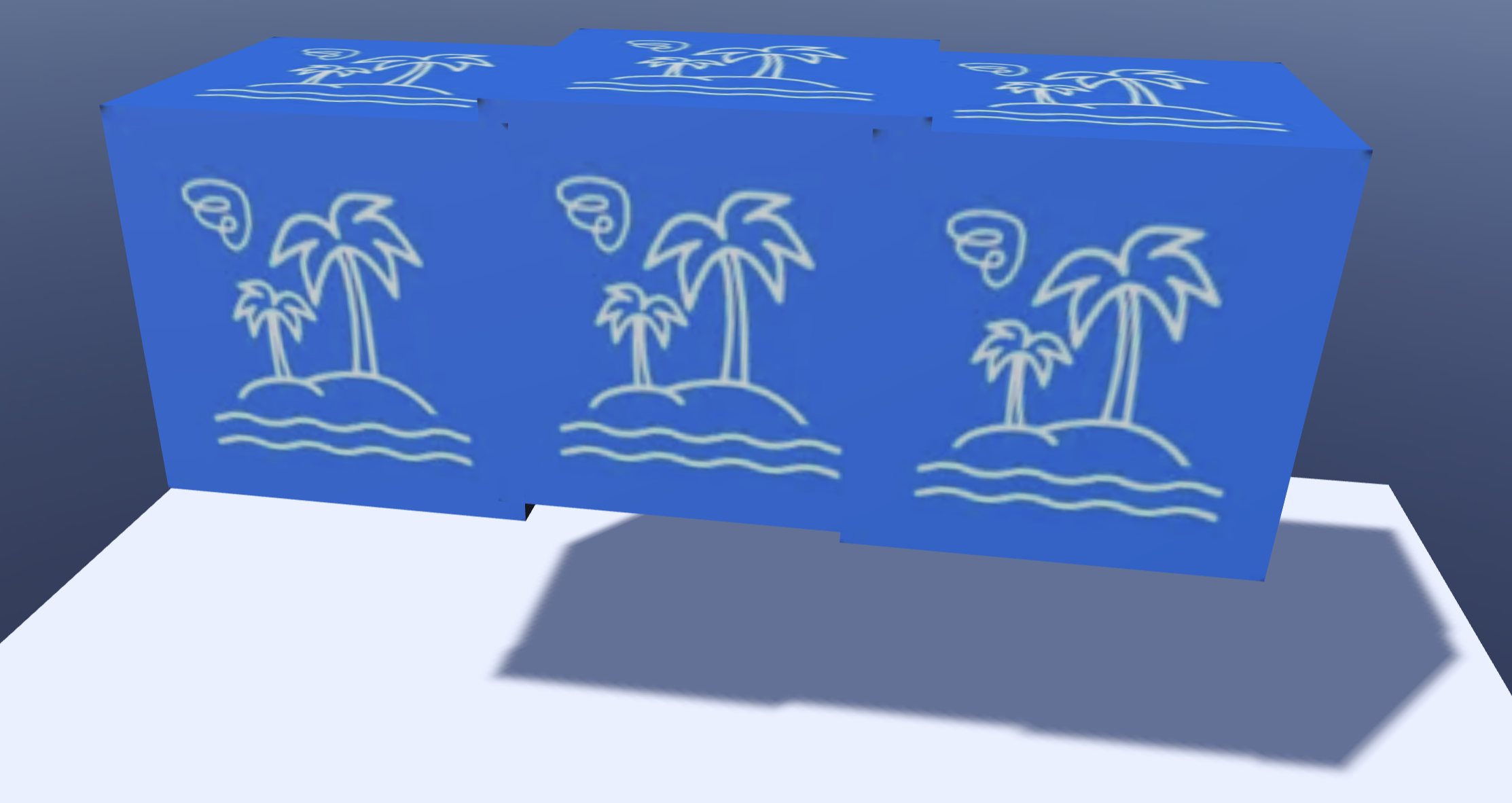
You can drag and drop template assets from Asset view into Hierarchy view or Viewport to place object instances in the scene.
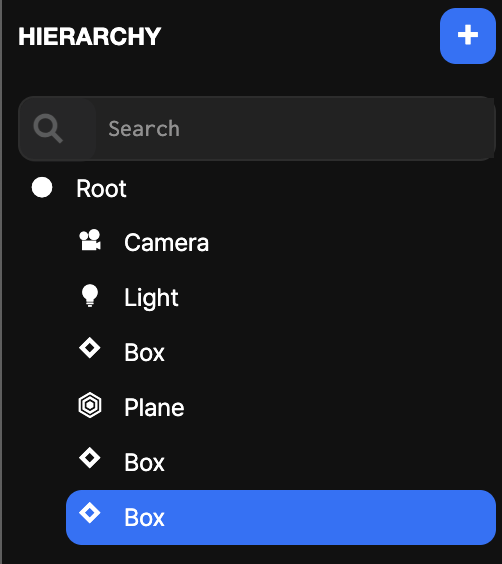
Step 2: Check Results
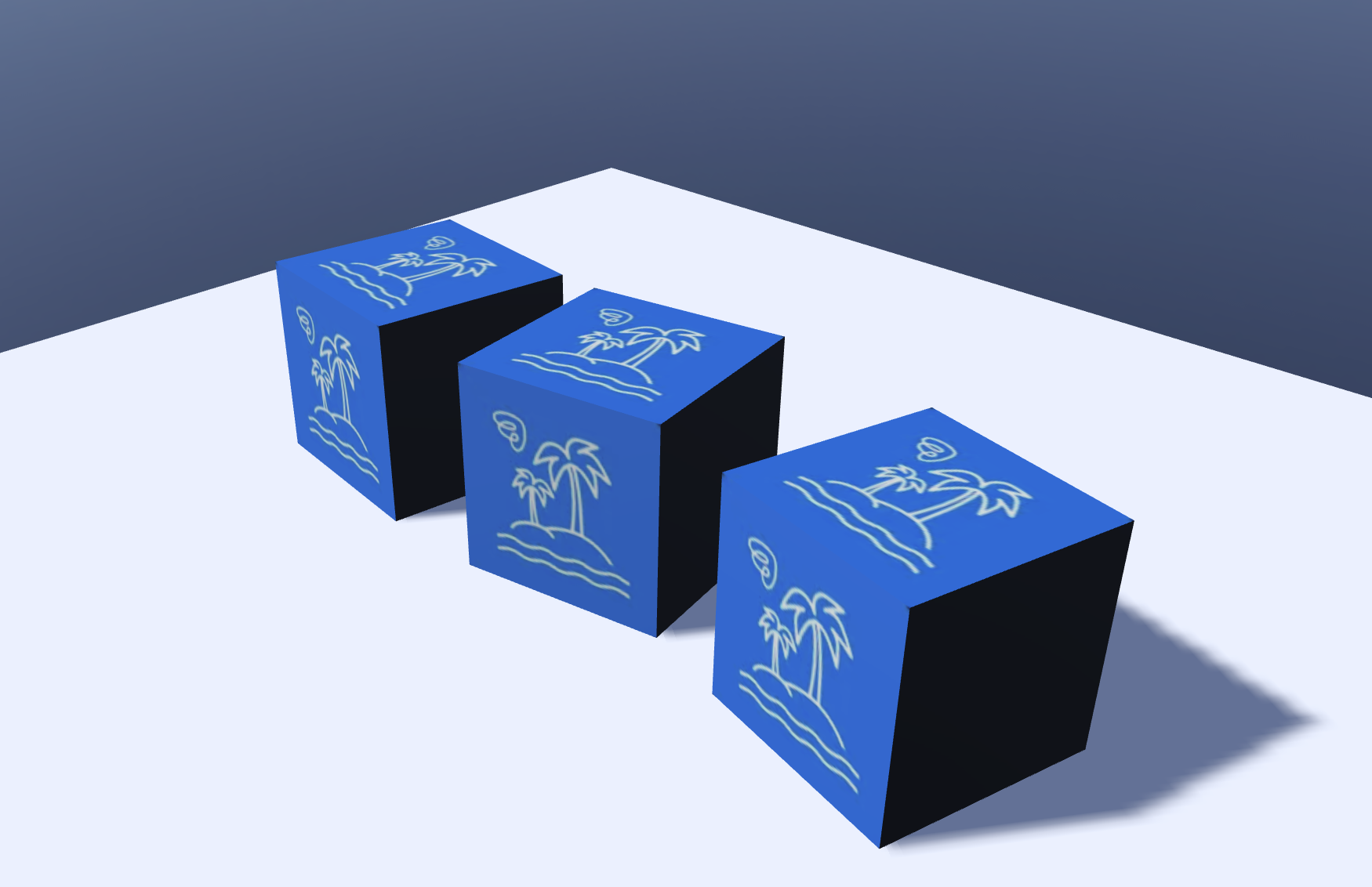
Change the position of the placed object, then click Launch in the Viewport to check the results.
Template Instance Management
Template Instance Options
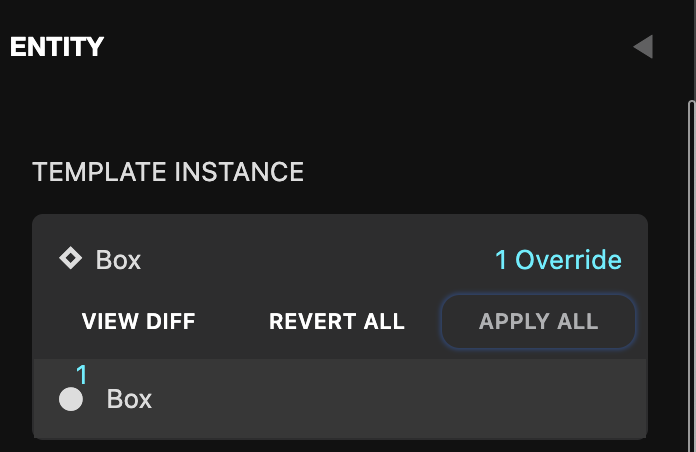
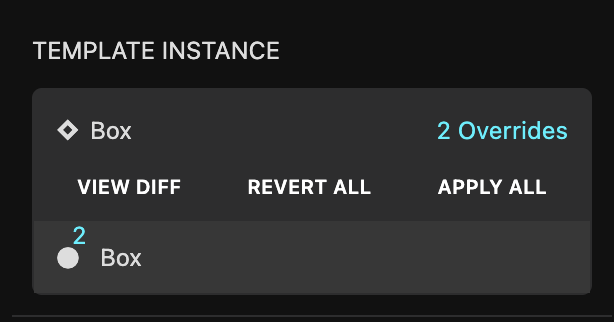
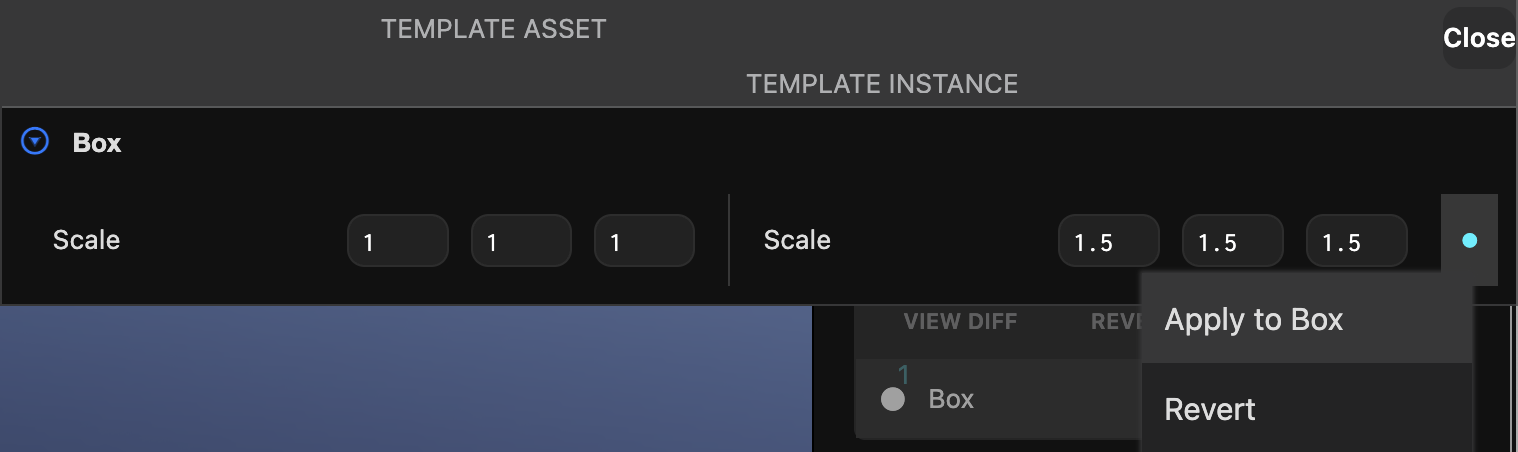
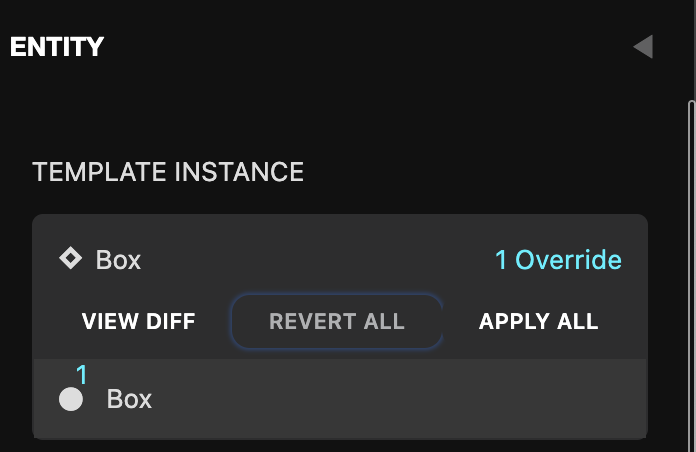
Template instances have Template Instance at the top of the Inspector view, and when changes occur to one object, VIEW DIFF, REVERT ALL, APPLY ALL buttons are created.
VIEW DIFF
When you click VIEW DIFF → Apply to Box, only the selected changes are applied to the original template.
REVERT ALL
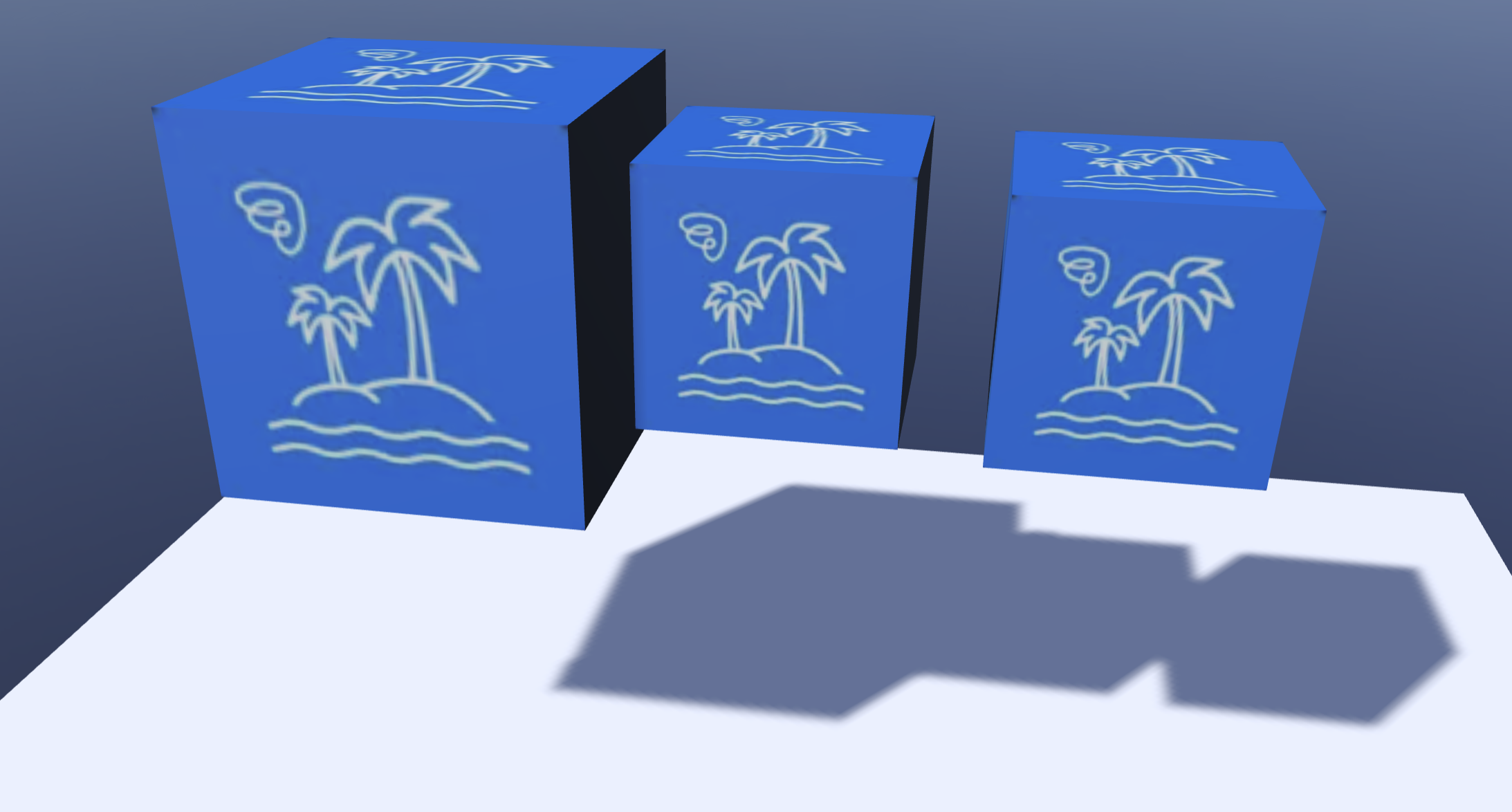
When you click REVERT ALL, it cancels the instance's changes and reverts to the same state as the original template.
APPLY ALL
When you click APPLY ALL, all changes are applied to the original template and all template instances.