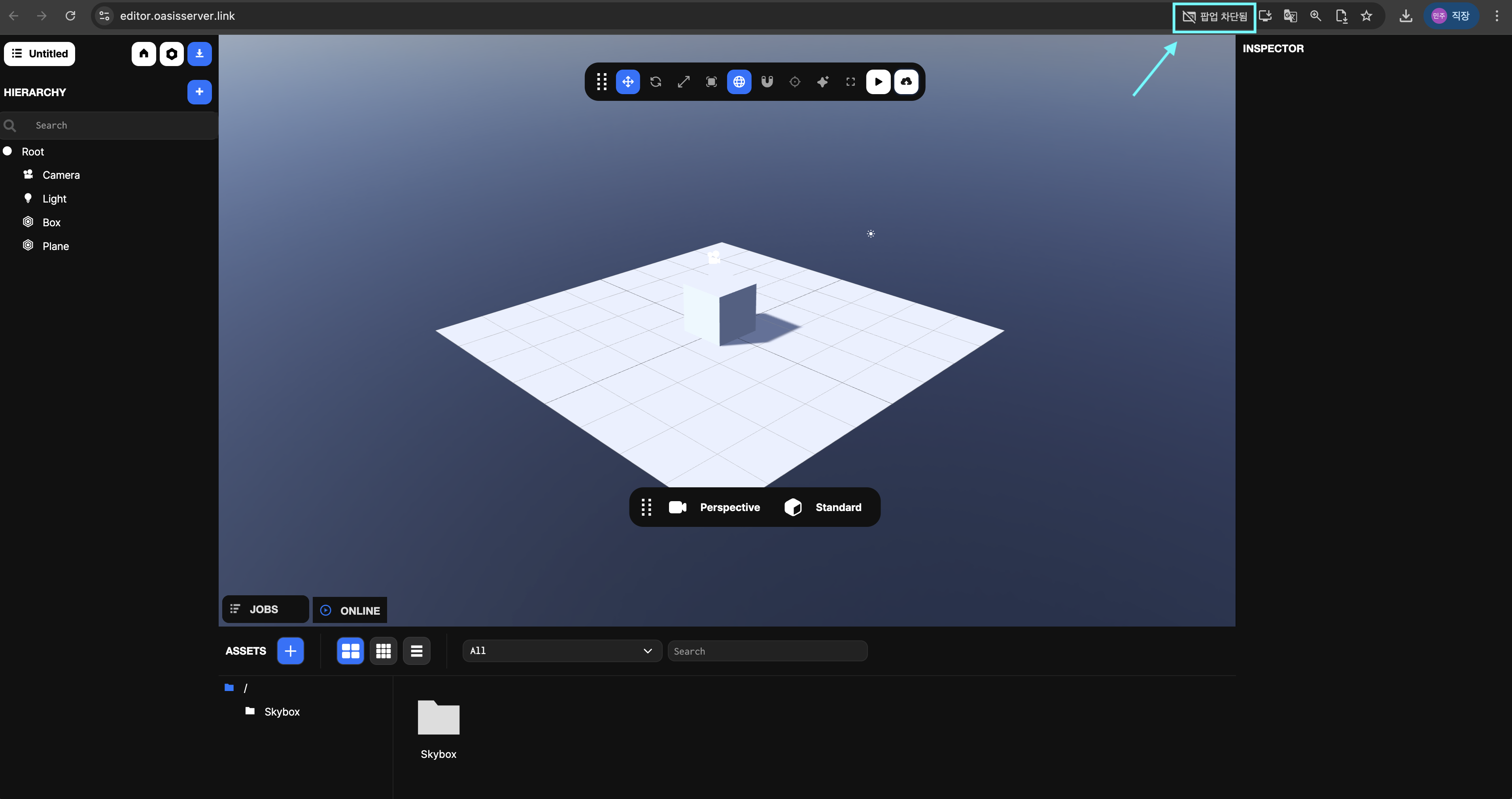
Toolbar
Learn about the shortcuts and functions of each button in OasisW's toolbar.
Shortcuts and Functions
| Image | Button | Shortcut | Description |
|---|---|---|---|
 | Translate | 1 | Object move mode |
 | Rotate | 2 | Object rotate mode |
 | Scale | 3 | Object scale mode |
 | Resize Element Component | 4 | Element component resize |
 | World/Local | L | World / Local coordinate system toggle |
 | Snap | Shift | Align to grid |
 | Focus | F | Focus on selected object |
 | AI Image Generation | I | Generate images with AI |
 | Fullscreen | Space | Hide/show all panels (viewport maximization) |
 | Launch | Ctrl+Enter | Run scene in new tab |
 | Publish | Deploy test |
Translate (Move)
- Shortcut:
1 - Function: Object move mode.
- Usage:
- X-axis (red): Move left and right.
- Y-axis (green): Move up and down.
- Z-axis (blue): Move forward and backward.
- Features: Precise position adjustment by dragging.
Rotate
- Shortcut:
2 - Function: Object rotate mode.
- Usage:
- X-axis (red): Rotate around X-axis.
- Y-axis (green): Rotate around Y-axis.
- Z-axis (blue): Rotate around Z-axis.
- Features: Independent rotation manipulation for each axis.
Scale
- Shortcut:
3 - Function: Object scale mode.
- Usage:
- Adjust size for each axis.
- Drag center handle to scale uniformly.
Resize Element Component
- Shortcut:
4 - Function: Element component resize mode.
- Usage:
- Drag corners with mouse to adjust size.
- Features:
- Independent width and height adjustment.
World/Local
- Shortcut:
L - Function: Toggle local/global coordinate system.
- World: Use world-based coordinate system.
- Local: Use object-based coordinate system.
Snap
- Shortcut:
Shift - Function: Align to grid.
- Usage: Precisely place objects in grid units when moving.
Focus
- Shortcut:
F - Function: Focus camera on selected object.
Fullscreen
- Shortcut:
Space - Function: Hide/show all panels. (Viewport maximization)
Launch
- Shortcut:
Ctrl+Enter - Function: Run scene in new tab.
Publish
- Function: Perform deploy test.
- Usage:
You can test the deployed project in a new tab.
By scanning the QR code displayed in the top right, you can also test on mobile devices.
Note
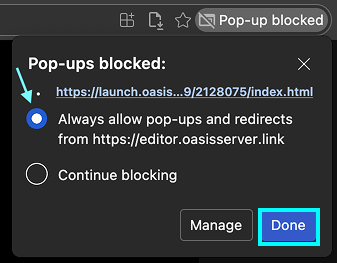
When clicking the Publish button, if a popup blocked icon appears next to the address bar,
you must allow popups for the scene to run normally in a new tab.