Adding Scripts
Learn how to program object behavior using scripts in OasisW.
Creating Scripts
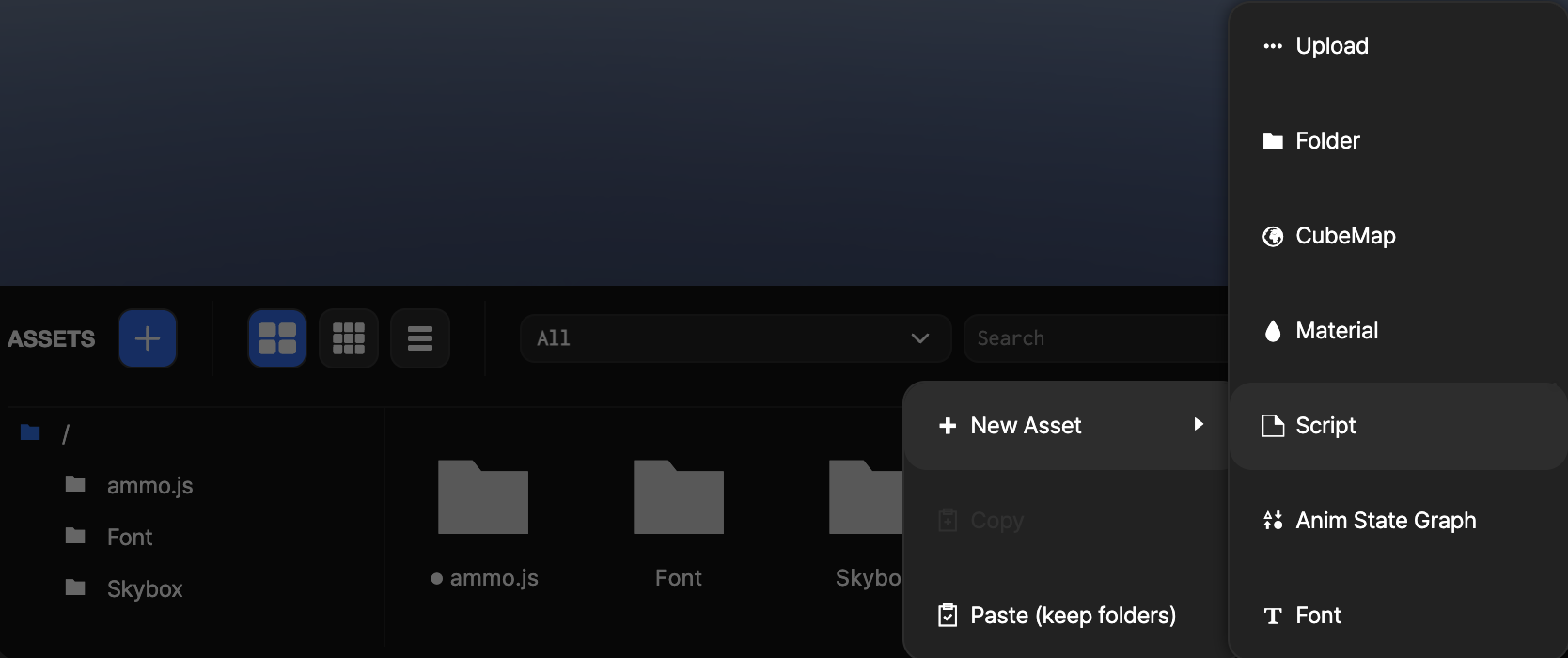
Step 1: Create Script Asset
- Right-click in the Asset view.
- Click New Asset → Script.
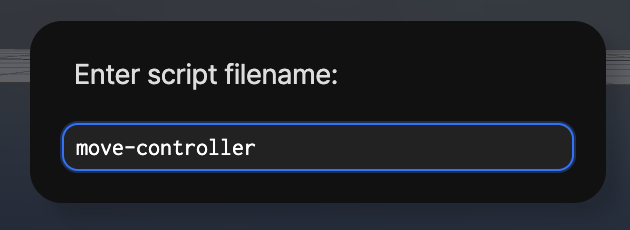
Step 2: Enter Script Name
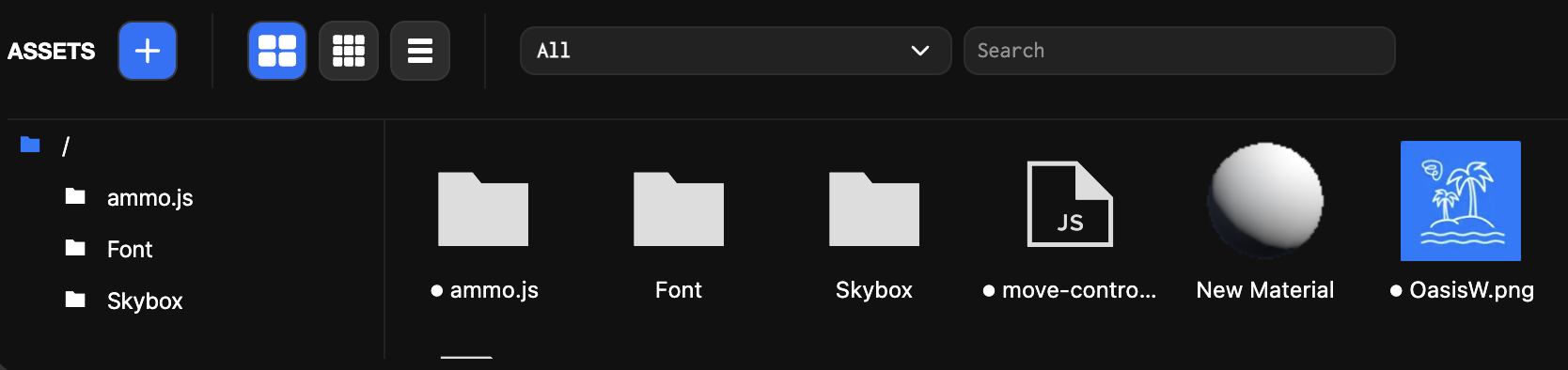
Step 3: Edit Script
Double-click the created script in the Asset view to open the editor.
Step 4: Implement Movement Logic
Use prompts to implement movement logic, then click Apply to apply, Save, and close.
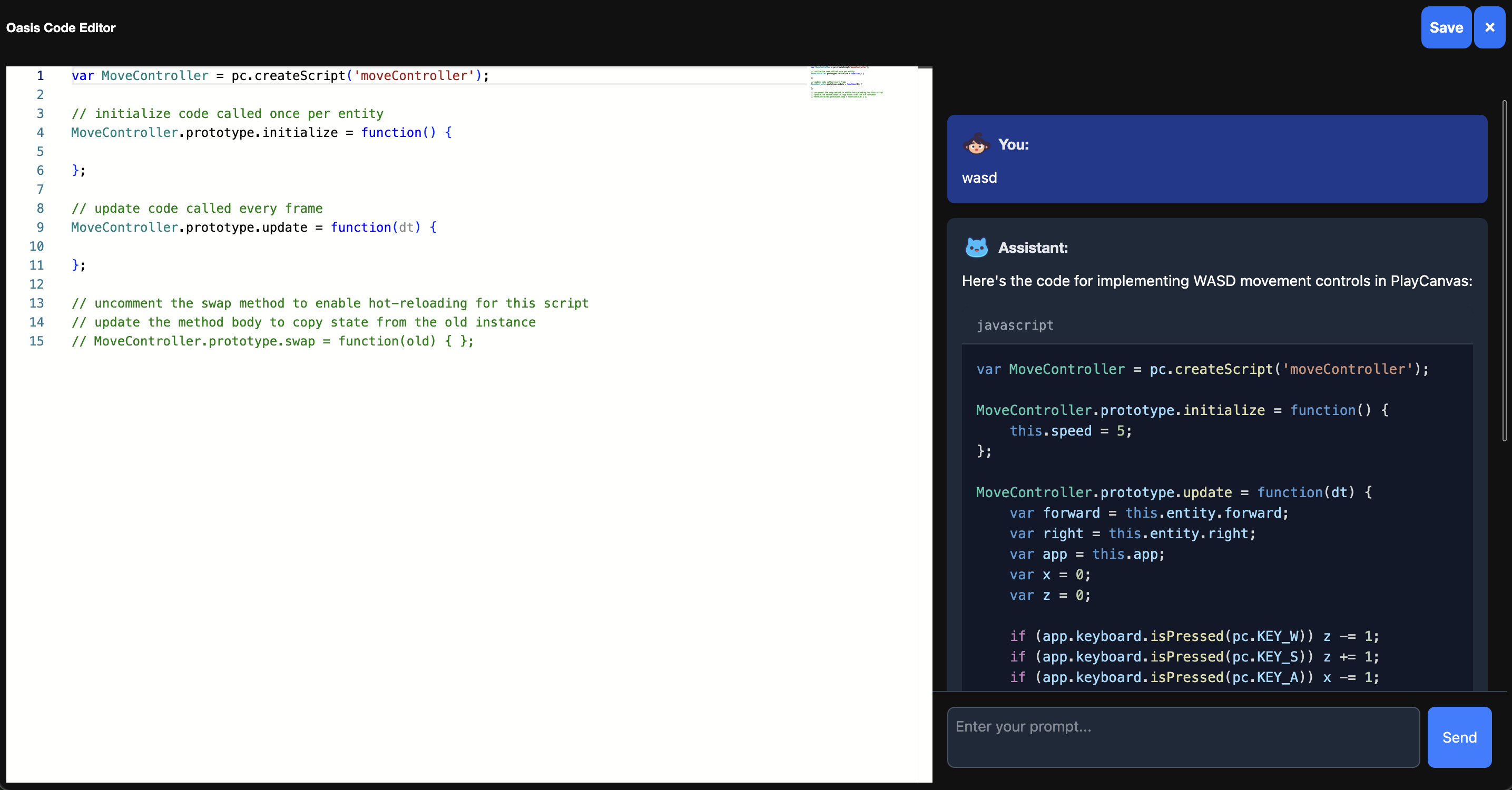
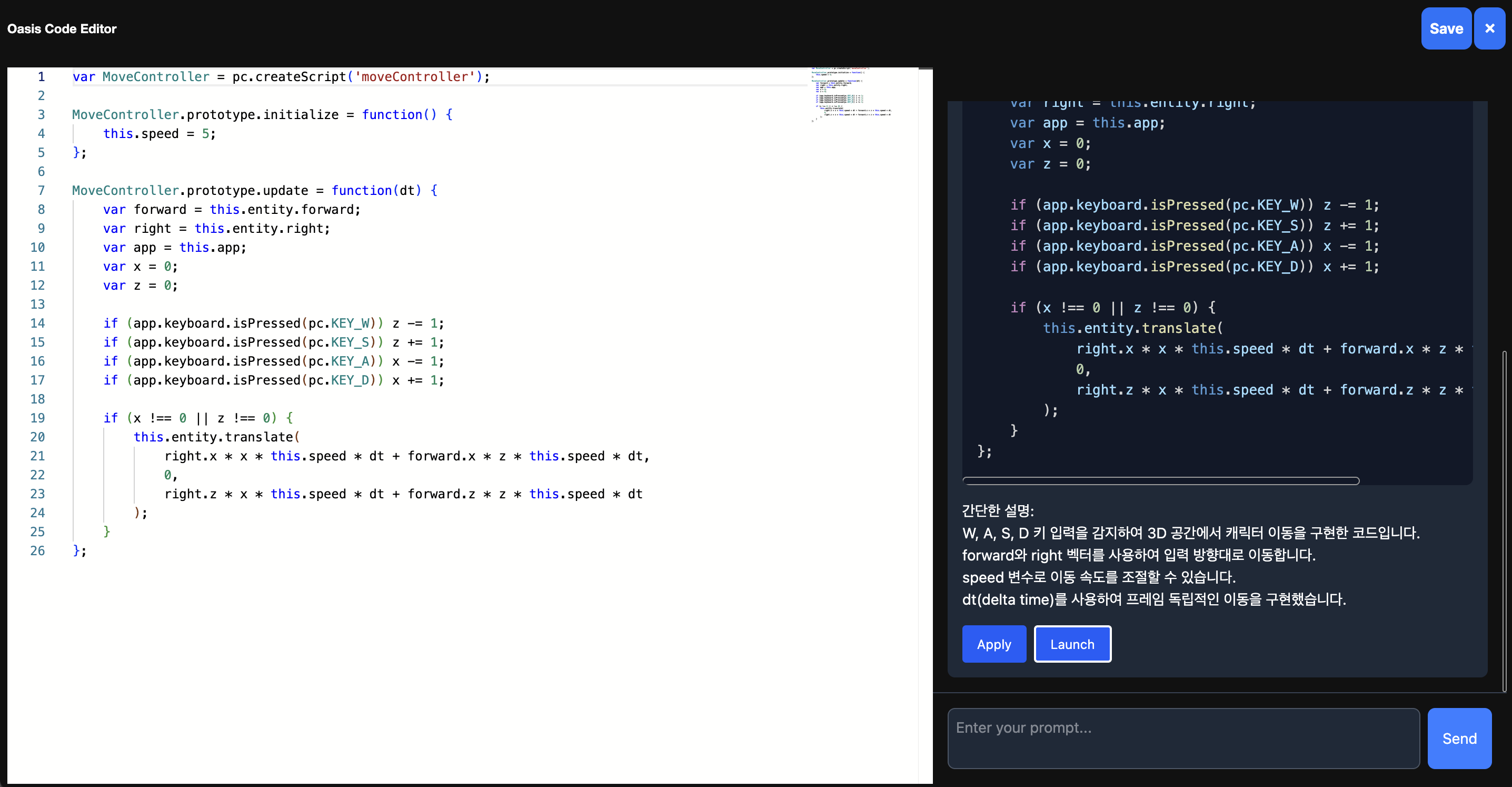
- Player entity movement with arrow keys based on x, y axes
- Example:
"Add code so Player entity can move up, down, left, right based on x, y axes with wasd arrow keys"
var PlayerController = pc.createScript('playerController');

PlayerController.prototype.initialize = function() {
    this.force = 5;
};

PlayerController.prototype.update = function(dt) {
    var inputForce = new pc.Vec3();

    if (this.app.keyboard.isPressed(pc.KEY_A)) {
        inputForce.x = -this.force;
    }
    if (this.app.keyboard.isPressed(pc.KEY_D)) {
        inputForce.x = this.force;
    }
    if (this.app.keyboard.isPressed(pc.KEY_W)) {
        inputForce.y = this.force;
    }
    if (this.app.keyboard.isPressed(pc.KEY_S)) {
        inputForce.y = -this.force;
    }

    this.entity.translate(inputForce.x * dt, inputForce.y * dt, 0);
};
- Fire missiles in y-axis direction
var GameManager = pc.createScript('gameManager');

GameManager.prototype.initialize = function() {
    this.missile = null;
    this.missileSpeed = 10;
    this.fireInterval = 1;
    this.fireTimer = 0;
    this.activeMissiles = [];
};

GameManager.prototype.update = function(dt) {
    this.fireTimer += dt;
    if (this.fireTimer >= this.fireInterval) {
        this.fireMissile();
        this.fireTimer = 0;
    }

    for (var i = 0; i < this.activeMissiles.length; i++) {
        var missile = this.activeMissiles[i];
        var pos = missile.getPosition();
        missile.setPosition(pos.x, pos.y + this.missileSpeed * dt, pos.z);
    }
};

GameManager.prototype.fireMissile = function() {
    this.missile = this.app.root.findByName('Missile');
    if (this.missile) {
        var player = this.app.root.findByName('Player');
        if (player) {
            var missileClone = this.missile.clone();
            missileClone.setPosition(player.getPosition());
            missileClone.setEulerAngles(0, 0, 0);
            this.app.root.addChild(missileClone);
            missileClone.collision.enabled = true;
            this.activeMissiles.push(missileClone);
        }
    }
};

GameManager.prototype.swap = function(old) { };
- Enemy entity drop
var EnemyController = pc.createScript('enemyController');

EnemyController.prototype.initialize = function () {
    this.enemyTemplate = this.app.root.findByName('Enemy');
    this.timer = 0;
    this.spawnInterval = 2.0;
    this.enemySpeed = 3.0;
    this.enemyCount = 5;
    this.spawnY = 10.0;
    this.enemies = [];
};

EnemyController.prototype.update = function (dt) {
    this.timer += dt;

    if (this.timer >= this.spawnInterval) {
        this.timer = 0;
        this.spawnEnemies();
    }

    this.moveEnemies(dt);
};

EnemyController.prototype.spawnEnemies = function () {
    for (let i = 0; i < this.enemyCount; i++) {
        const xPos = -4 + (i * 2);
        const enemy = this.enemyTemplate.clone();
        enemy.setPosition(xPos, this.spawnY, 0);
        enemy.enabled = true;
        this.entity.addChild(enemy);
        this.enemies.push(enemy);
    }
};

EnemyController.prototype.moveEnemies = function (dt) {
    for (let i = 0; i < this.enemies.length; i++) {
        const enemy = this.enemies[i];
        const pos = enemy.getPosition();
        enemy.setPosition(pos.x, pos.y - this.enemySpeed * dt, pos.z);
    }
};
Applying Scripts
Step 1: Add Script Component
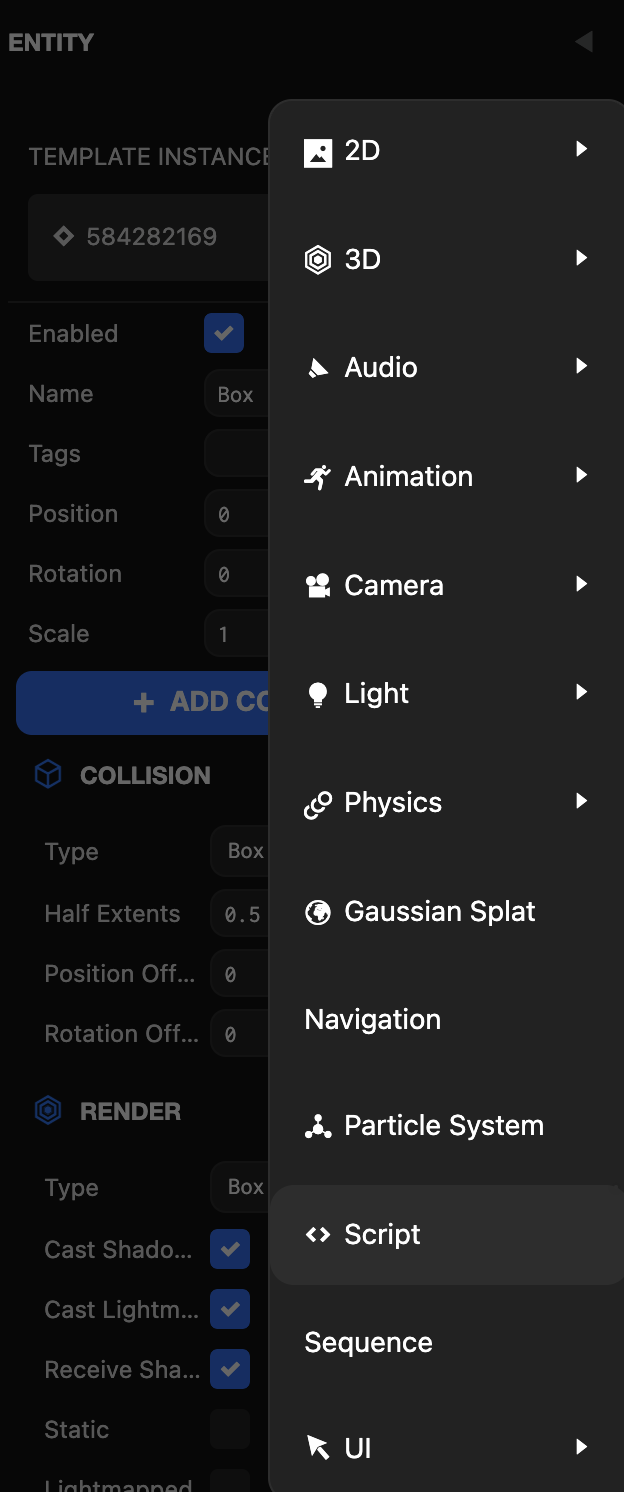
- Select the Box object in the Hierarchy view.
- In the Inspector view, click Add Component → Script.
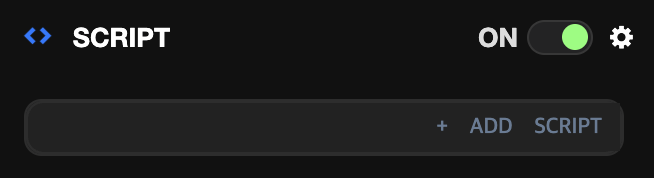
Step 2: Add Script
When a script component is created at the bottom of the Inspector view, click Add Script.
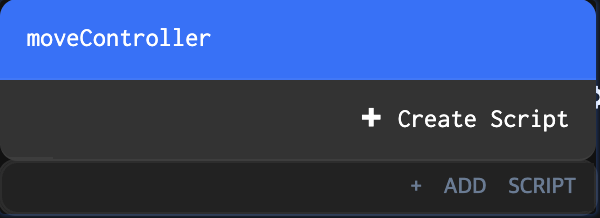
Step 3: Select Script
Click the created script to apply it.
Step 4: Check Results
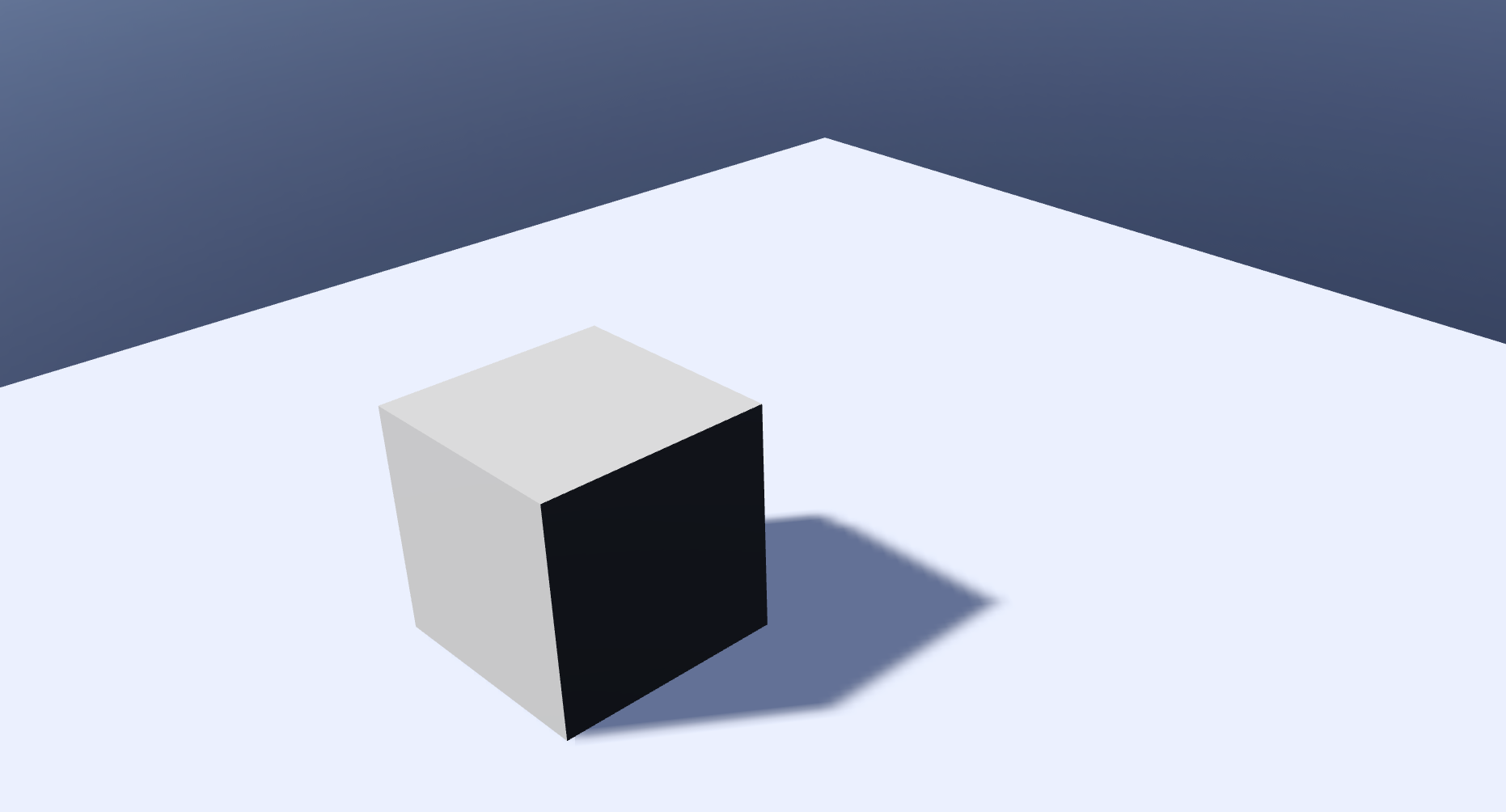
Click Launch in the Viewport to check the Box object's movement.
Organizing Scripts
As your project grows, so will your number of scripts. Good organization is crucial:
- Folders: Use folders within the Asset Panel to categorize and group your scripts. You can drag-and-drop scripts between folders as necessary.
- Naming Conventions: Stick to consistent and descriptive naming for your script files. This makes them easier to find and understand.
Deleting Scripts
To delete a Script Asset:
- Select the Script Asset in the Asset Panel.
- Press the Delete key, or right-click and select Delete.
- A confirmation dialog will appear. Click DELETE to confirm.
note
If the Script Asset is currently assigned to any Script Components on Entities in your scenes, deleting the asset will remove it from those components. You may want to delete those components if they are no longer required.