Viewport
Learn about the Viewport, the core interface for visually editing and exploring OasisW's 3D scenes.

Gizmos
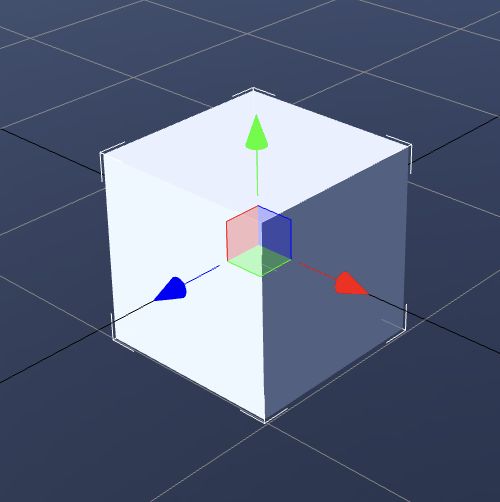 | 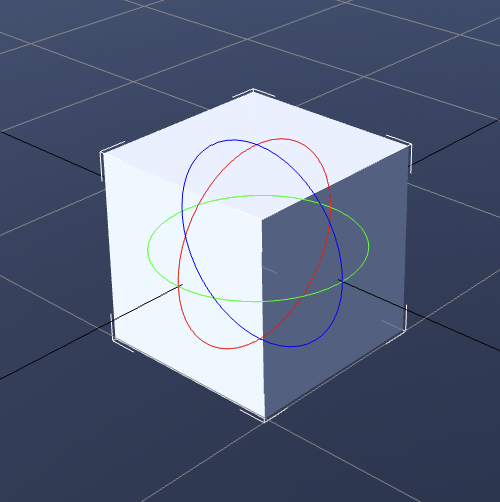 | 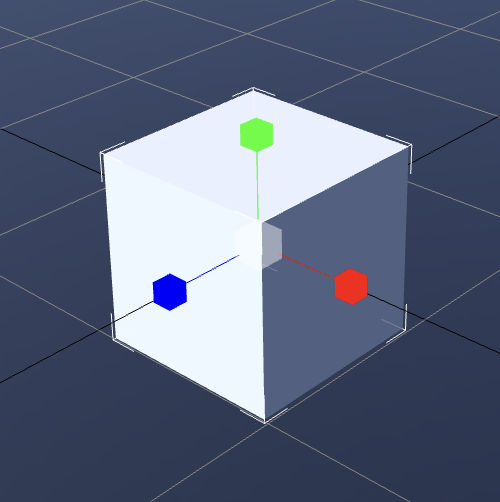 |
|---|---|---|
| Translate | Rotate | Scale |
- The 3-colored axis visible on screen is called a gizmo.
- Used when manipulating the transform matrix of a selected entity.
- Types:
- Translate → Has arrow icons at the end of each axis.
- Rotate → Has a 3-colored circular ring structure.
- Scale → Has cube icons at the end of each axis.
Cameras
Perspective
- By default, the editor uses a Perspective camera.
→ Provides a view as if a film camera is floating through the scene. - You can switch to different cameras via the camera dropdown menu.

Orthographic
- Types: Top, Bottom, Front, Back, Left, Right
- Features: Provides a view without perspective → Useful for precise position adjustment.
Render Mode
- You can change settings using the render mode dropdown menu in the top right of the viewport.

Features
- Wireframe Display: Visualizes scene meshes as line structures only.
- Debug Render Modes: Can display only specific rendering properties.
- Standard: Standard rendering mode. Displays the final result with all materials and lighting applied.
- Albedo: Displays only the base color texture of materials (pure color excluding light and shadow effects).
- Opacity: Visualizes the opacity (Transparency/Opacity) value.
- World Normal: Represents surface direction (normal vector) as color. Used to check surface slope.
- Specularity: Displays the specular intensity (Specular level) of materials.
- Gloss: Displays surface smoothness or roughness.
- Metalness: Visualizes whether a surface is metallic.
- AO (Ambient Occlusion): Displays ambient occlusion effects to check surface depth and shading.
- Emission: Displays emission properties (parts that glow without a light source).
- Lighting: Visualizes only lighting in the scene (excluding material colors and textures).
- UVO: Visualizes the texture coordinate layout of UV channel 0.
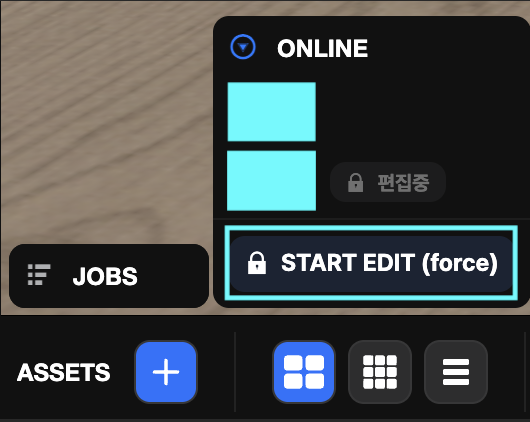
JOBS
Displays the progress status of tasks.

ONLINE
Displays the list of users currently connected to the project's scene.
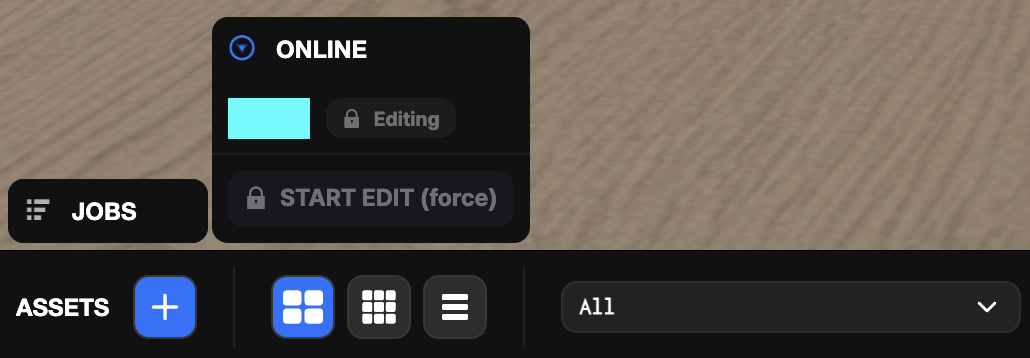
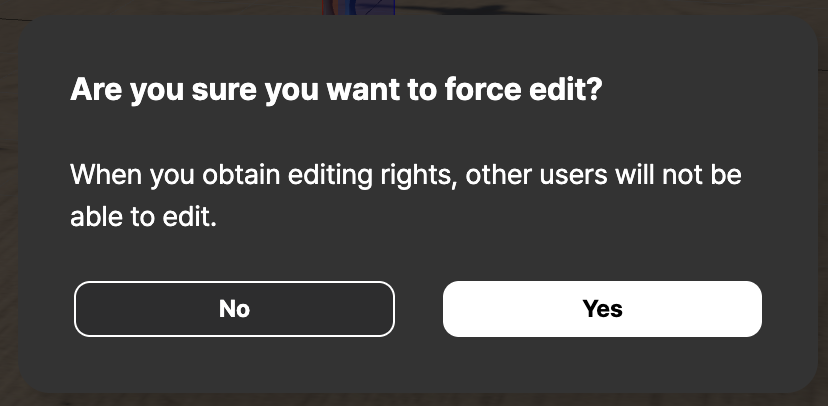
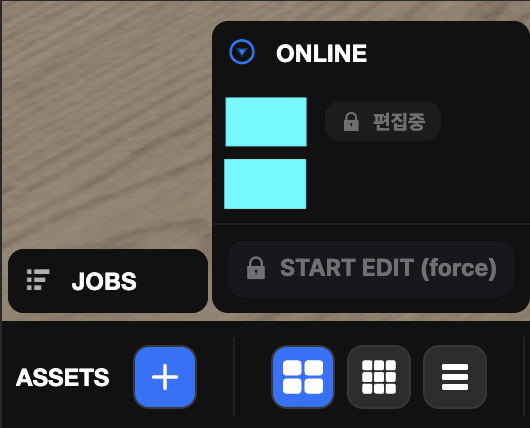
START EDIT (force)
Forces acquisition of scene edit permissions.