Shadows
Shadows are a great way to add realism to games. However, dynamic (real-time) shadows can incur significant runtime performance costs.
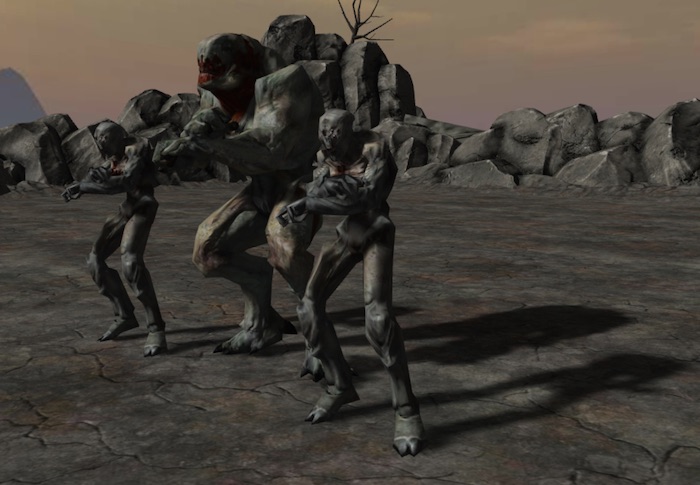
The OasisW engine implements a shadow algorithm called shadow mapping. This is fully cross-platform, so it's guaranteed to work on both mobile and desktop.
Enabling Shadows
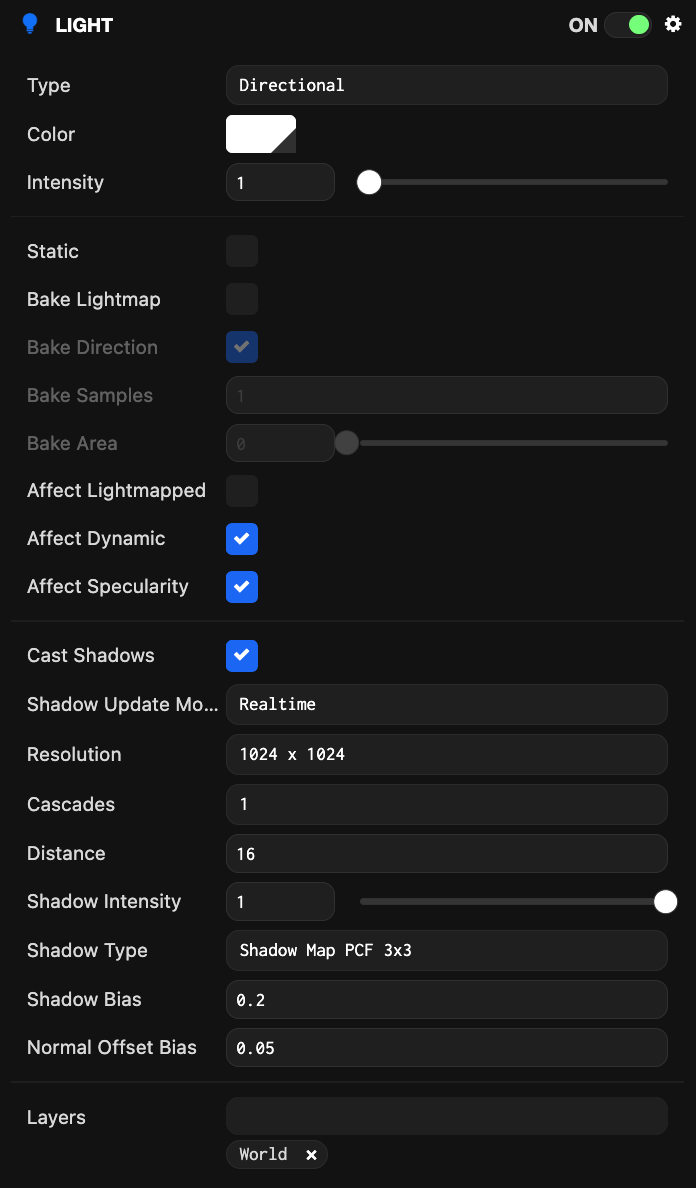
By default, shadow casting is disabled in OasisW. You need to explicitly enable it. Fortunately, enabling shadows is easy. First, identify the lights in your scene that you want to cast shadows. Select the light in the Hierarchy to edit its properties in the Inspector panel. All lights have a 'Cast Shadows' option. Simply check this option to generate shadows for the shadow-casting graphics objects in your scene.
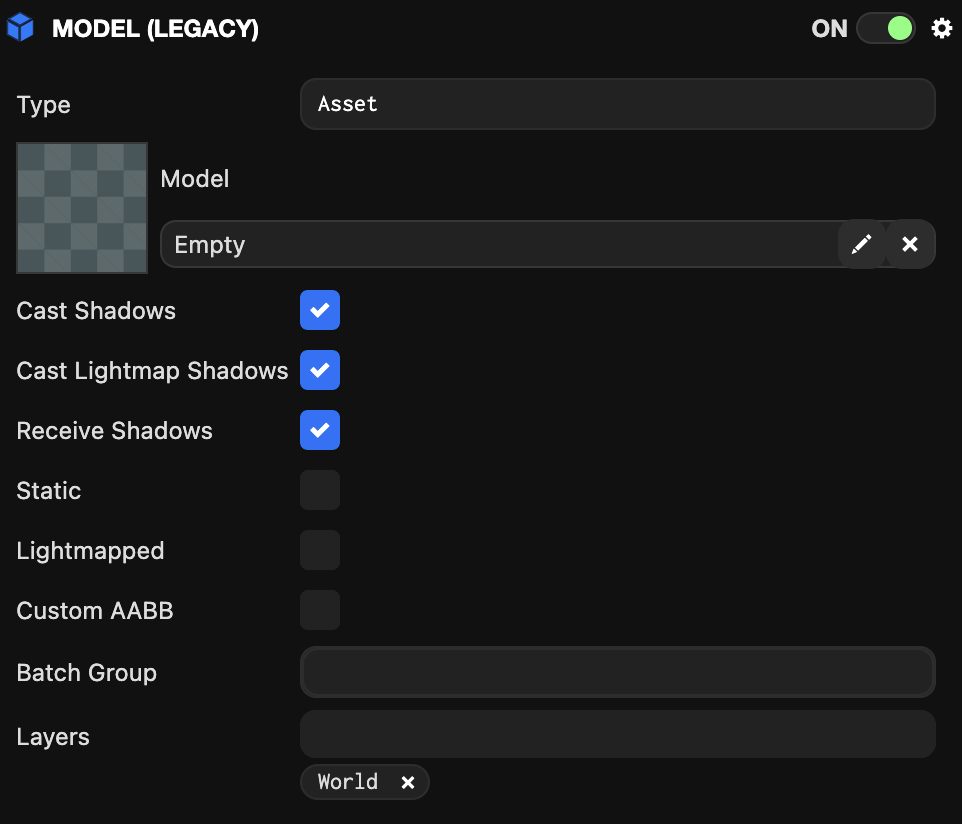
Now you need to specify which graphics objects in the scene will cast and receive shadows. By default, all render and model components cast and receive shadows. To modify these properties, select an entity in the Hierarchy and find the render or model component in the Inspector, then uncheck the 'Cast Shadows' or 'Receive Shadows' options as needed.
Shadow Cascades
When directional shadows are used over a wide area, aliasing often occurs where shadows near the camera have low resolution. To improve this, an unrealistically high resolution would be needed to capture shadows in a single shadow map.
Shadow cascades help solve this problem by splitting the camera view frustum along the view direction and using separate shadow maps for each split. This allows one shadow map to be provided for nearby objects, another shadow map to capture everything at distance, and optionally additional shadow maps in between.
Be careful about the number of shadow cascades as it affects performance. Each shadow-casting mesh may be rendered more times than with a single shadow map.
You can configure shadow cascades using the following properties.
Number of Cascades
The number of cascades represents the number of view frustum splits and can be 1, 2, 3, or 4. The default value of 1 represents a single shadow map.
Screenshot showing a single shadow cascade.
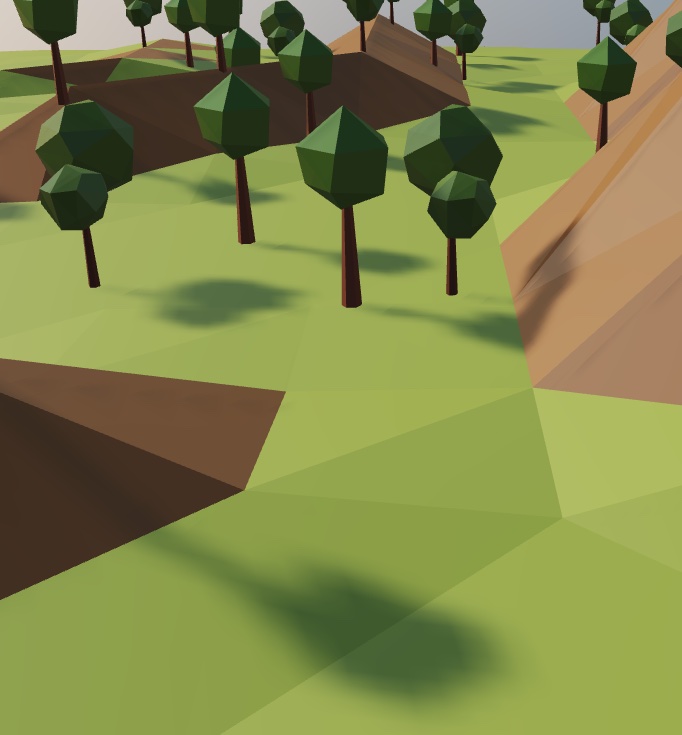
Screenshot showing four shadow cascades.
Distribution of Cascades
The distribution of camera frustum splits for individual shadow cascades. You can specify values between 0 and 1. A value of 0 represents linear distribution, and a value of 1 represents logarithmic distribution. Visually, higher values distribute more shadow map resolution to foreground objects, and lower values distribute to more distant objects.
Tuning Shadows
The shadow mapping technique used in OasisW only has finite resolution. Therefore, you may need to adjust some values to make them look as good as possible. The following properties can be found in the Light Component UI.
Shadow Distance
Shadow distance is the distance from the viewpoint beyond which directional light shadows are no longer rendered. The smaller this value, the sharper the shadows become. The problem is that when the viewpoint moves around the scene, viewers can see shadows suddenly appearing. Therefore, you need to balance this value based on how far the player can see and what generally looks good.
Shadow Intensity
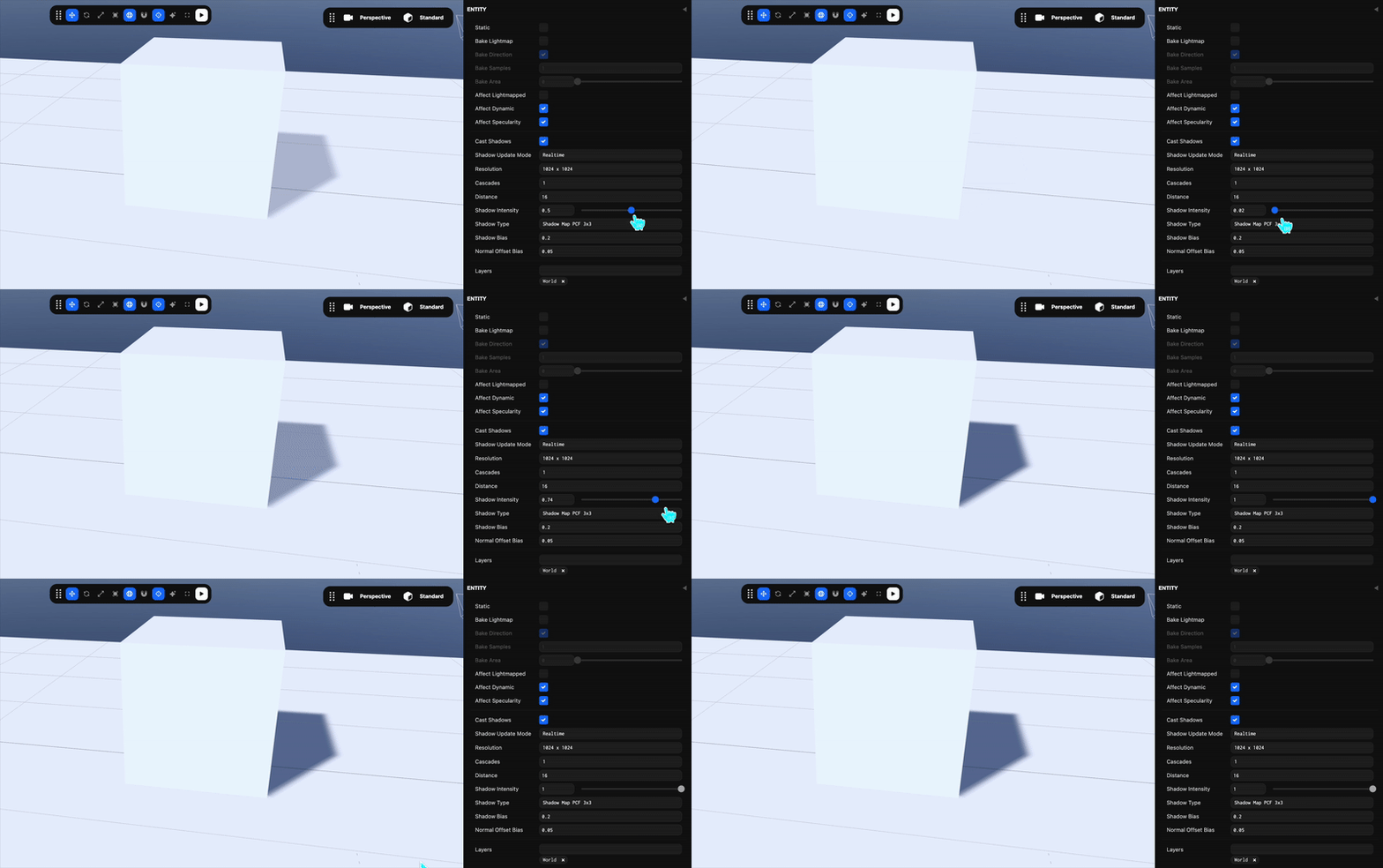
The intensity of the shadow, where 1 represents full intensity shadows from this light and 0 represents no shadows.
Shadow Resolution
All lights cast shadows through shadow maps. These shadow maps can have resolutions of 256x256, 512x512, 1024x1024, or 2048x2048, and this value is also set in the light component interface. Higher resolutions make shadows sharper. However, higher resolution shadows have higher rendering costs, so balance performance and quality.
Shadow Bias
Shadow mapping is prone to very unsightly rendering artifacts. If you find shadow bands or spot patches in unexpected places, try adjusting the shadow bias to solve the problem.
Normal Offset Bias
'Shadow acne' artifacts are a major problem, and shadow bias can remove them very effectively. Unfortunately, this always introduces some degree of 'Peter Panning' phenomenon. This makes shadows appear as if objects are floating in the air.
Normal offset bias solves this problem. In addition to using depth bias, you can avoid both shadow acne and Peter Panning by slightly adjusting the UV coordinates used for shadow map lookups. The fragment's position is offset along the geometric normal. This "normal offset" technique provides much better results than approaches that only use constant shadow bias.
Soft Shadows vs Hard Shadows
The outline of shadows is called penumbra. This is the transition from darkness to light that provides soft edges to shadows. Softening shadow edges is the default in OasisW, but you can change this setting if you want hard-edged shadows. See below for a comparison of soft and hard-edged shadows:
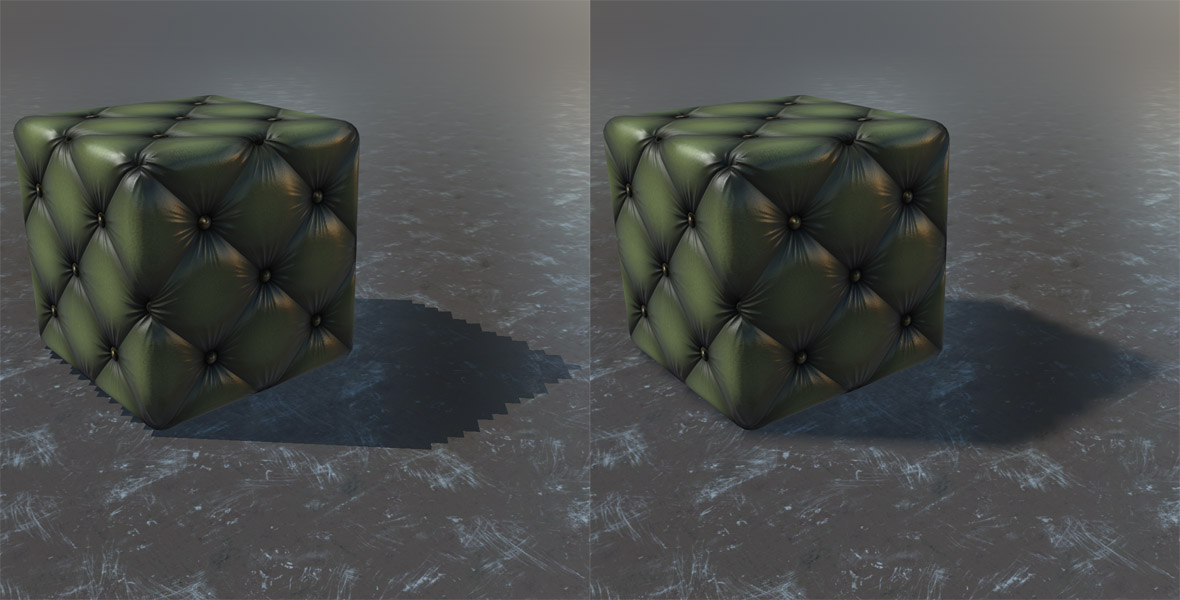
Soft shadows are achieved by the GPU performing more samples of the shadow map. The algorithm used is called Percentage Closest Filtering or PCF for short. This algorithm reads 9 localized samples (3x3 matrix) from the shadow map instead of the single sample used for hard shadows.
Shadow sampling type is specified per light, so this option can be found in the light Inspector.
Performance Considerations
Enabling shadows affects performance:
- For each directional or spot light casting shadows, the scene must be rendered once to the shadow map every frame. Omni light shadows are much more expensive as the scene is rendered 6 times per light (shadow maps are stored as 6-face cube maps). Rendering the scene to shadow maps puts load on both CPU and GPU.
- Using higher shadow map resolutions creates sharper shadows but can affect frame rate as the GPU needs to fill more shadow map pixels.
- Selecting soft shadows (PCF3x3) as the shadow sample type on materials that receive shadows is more expensive on the GPU than the hard shadow option.