Cubemap
A cubemap is a special type of texture asset. It consists of 6 texture assets where each texture represents a face of a cube. It typically has two uses:
- A cubemap can define the skybox of a scene. The skybox contains the distant visual imagery of the scene such as hills, mountains, sky, etc.
- A cubemap can add reflections to any material. Imagine a shiny chrome ball bearing in your scene. The ball reflects the surrounding scene. For open environments, it's common to set the scene's skybox cubemap as the cubemap on reflective objects' materials.
Importing Cubemap Textures
A cubemap is an asset that requires 6 texture assets as input. So to fully configure a new cubemap asset, you first need to import 6 images into your project. To do this, drag 6 images from your file system to the Assets Panel (or select the upload option in the Assets Panel). Once uploaded and processed, the images will appear in the Assets Panel and are now ready to be assigned to the cubemap asset.
Creating a Cubemap
You can create a new cubemap asset directly from the OasisW editor interface. Use the Create Asset menu in the Assets Panel.
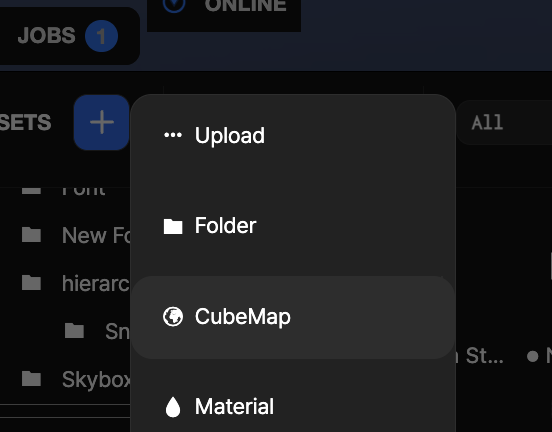
This will create a new cubemap asset and open the cubemap editor on the right side of the screen.
Selecting a Cubemap
To select a cubemap for editing, select it in the Assets Panel. The easiest way is to select the cubemap filter to narrow down the selection options. Cubemaps are identified by cross-shaped thumbnails:
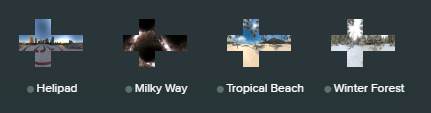
When a cubemap is selected, it loads in the Inspector panel on the right side of the editor.
Cubemap Properties
When a cubemap is selected, you can edit its properties.
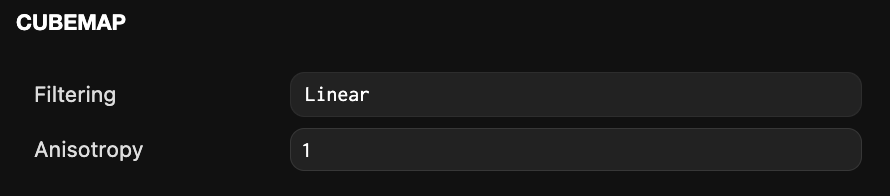
Filtering
This setting determines how pixels of the cubemap are interpolated when magnified. Magnification is when the texel to screen pixel ratio is less than 1. Linear provides the best visual results.
Anisotropy
Anisotropy is a value between 1 and 16 that can control the quality of texture sampling when the camera's view vector is more closely aligned with the plane of the textured surface.
Assigning Textures to Cubemap
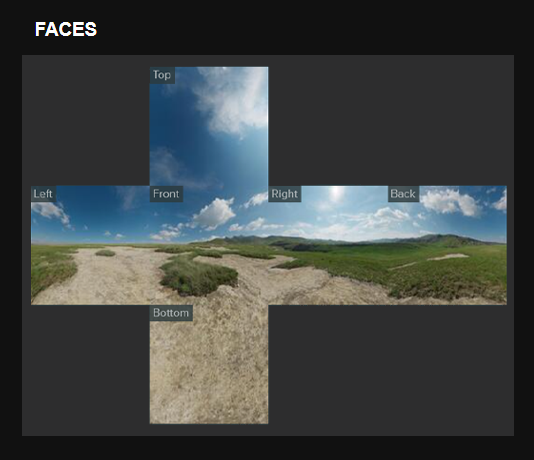
The cubemap preview panel displays the 6 faces of the cubemap flattened in a cross shape. Imagine an unfolded cardboard box laid flat. To configure the cubemap, simply drag texture assets from the Assets Panel to the face slots in the preview panel. You can also select a cubemap face slot and then select a texture asset from the Assets Panel.
Cubemap faces must meet the following requirements:
- Square (resolution where width and height are equal)
- Power of two dimensions (1x1, 2x2, 4x4, 8x8, 16x16, 32x32, etc.)
- All faces must have the same resolution
To help with this, the editor tries to intelligently auto-assign textures to faces. It does this by trying to match commonly used naming conventions for cubemap faces when you drag the first face to a slot:
- negx, posx, negy, posy, negz, posz
- left, right, top|up, bottom|down, front|forward, back|backward
- 0-5|1-6
Example of a matching texture set:
- face_posx.jpg
- face_negx.jpg
- face_posy.jpg
- face_negy.jpg
- face_posz.jpg
- face_negz.jpg
Image-based Lighting
This technique allows you to use environment maps like cubemaps to simulate physically-based ambient lighting and material reflections. See Learn More for how it works and how to create cubemaps for IBL.
Assigning Cubemap to Materials
Both the basic Phong and Physical material types have reflection properties. When you expand the Environment properties section, you can see:
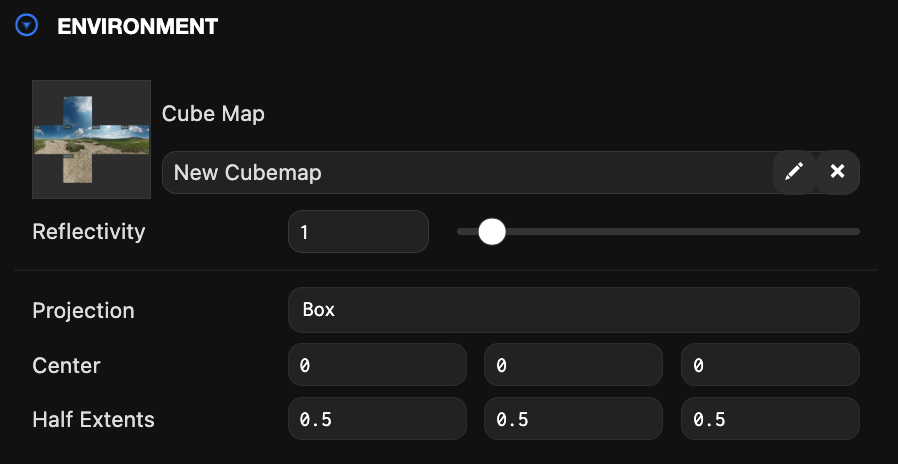
You can click on an empty slot to select a cubemap or drag and drop a cubemap asset from the Assets Panel to the cubemap slot.
Physical materials use the scene's skybox as the default environment map when assigned and pre-filtered.
Converting Equirectangular or Octahedral HDRI to Cubemap
Environment textures are often in equirectangular or Octahedral format (example from Poly Haven) and need to be converted to cubemaps before use in OasisW.
Other tools that can perform this conversion:
- Mateusz Wisniowski's HDRI-to-CubeMap tool (browser)
- cmftStudio (desktop) and guide