Preloading and Streaming
On the web, it's important to get users into your application as quickly as possible after the page loads. Showing loading bars and asking people to wait will cause visitors to leave the page before your application even starts. The OasisW asset system implements several features to streamline the loading process and help get your application running as quickly as possible.
Preloading
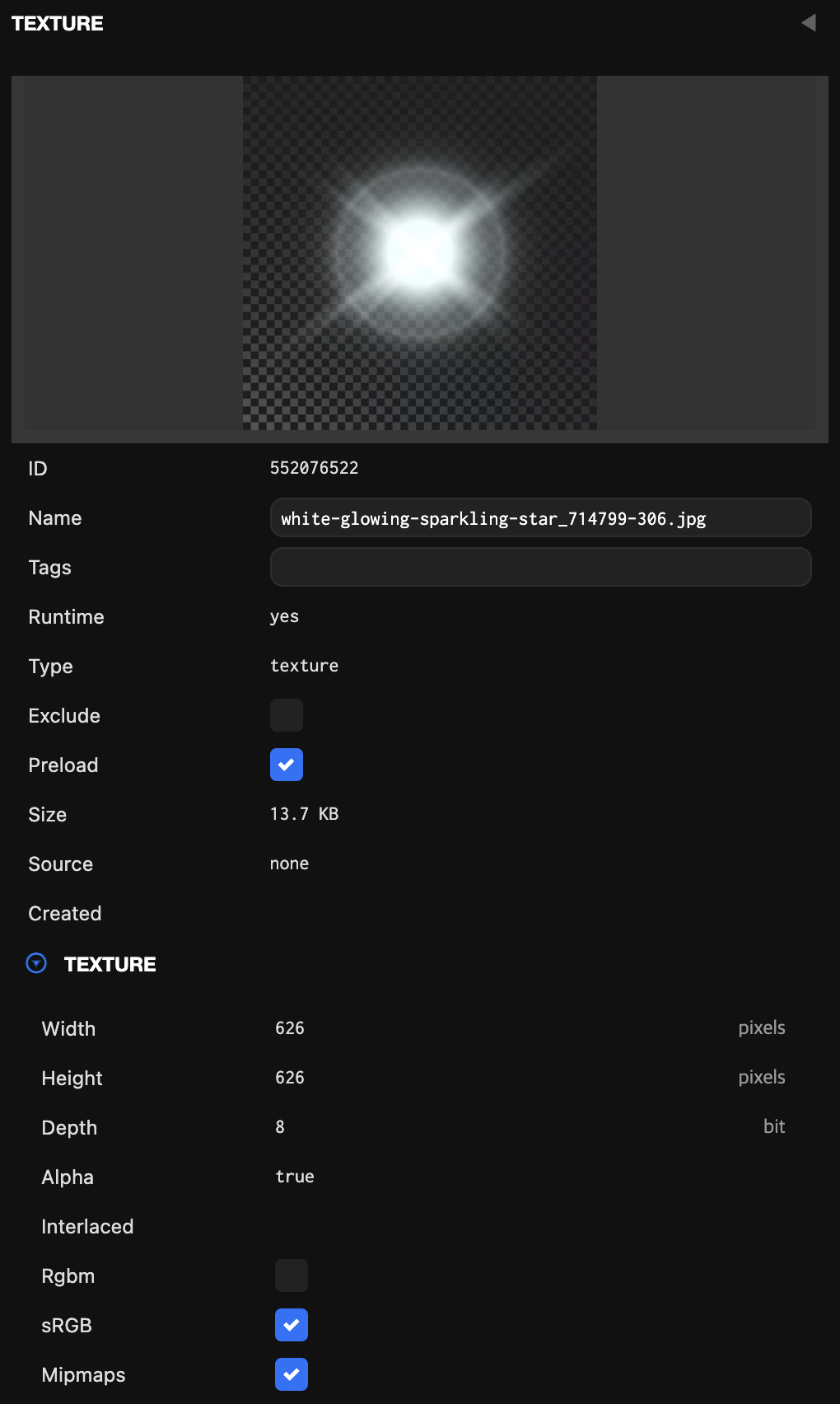
All assets in your project have a property called preload. By default, this is set to true. When an asset is marked for preloading, it is downloaded and created before the initialization phase of your application begins.
You should use preloading for all assets that are required when your application starts. This prevents assets from 'popping in' after your application has started.
Streaming

When entities in your scene reference assets, loading requests are initiated when the entity is enabled. If the entity is enabled in the scene, this request is made as soon as the application starts.
All components gracefully handle dynamically loading assets and will start working normally once the asset is loaded. When streaming assets dynamically like this, you will often see "pop-in". Models will appear as soon as they load, even if they don't yet have materials or textures.
When are assets loaded?
To determine when a specific asset will be loaded, you can follow these rules:
- If
preload = true, the asset is loaded before the application starts. Otherwise: - The asset is loaded when it is referenced by an enabled component on an entity that is enabled and in the scene hierarchy. Assets are loaded when the entity or component is enabled or when the asset is assigned to the component. For entities that are enabled in the editor, this happens as soon as the application starts, right after preloading is complete. A component is defined as enabled if it is enabled and all entities in the hierarchy above it are enabled.
- The asset is loaded when it is referenced by another asset that is loaded. For example, if a model is loaded and references a material, the material is loaded, and if the material references a texture, the texture is loaded.
Asset Tags
In many cases, you don't want assets to "pop in" when they load. It's preferable to load a set of assets and then display them. For this, you can use asset tags to create groups of assets. You can then load all assets with a specific tag before using them.
Here's a JavaScript example showing how to load a set of assets using tags:
const assets = this.app.assets.findByTag("level-1");
let count = 0;

for (let i = 0; i < assets.length; i++) {
    assets[i].once("load", function () {
        count++;
        if (count === assets.length) {
            // Asset loading complete
        }
    });
    this.app.assets.load(assets[i]);
}