Texture
A texture is an image that can be assigned to materials and then applied to graphics primitives.
Importing Textures
There are 3 ways to import texture assets into OasisW:
- Drag and drop an image to the Assets Panel.
- Select 'Upload' from the Assets Panel context menu and use the file browser to select an image.
- Import an FBX file that contains textures.
Supported image formats:
- JPG
- PNG
- GIF
- BMP
- WEBP
- AVIF
Imported JPG, PNG, AVIF, WebP and GIF files maintain their original format.
GIF and BMP image types are converted to JPG or PNG when imported. If the imported image has transparency, it's converted to PNG. Otherwise, it's converted to JPG.
By default, imported images are resized to the nearest power of two. For example, a 323x414 image is resized to 256x512 when imported. This is because graphics engines cannot utilize mipmapping with non-power-of-two textures. However, you can override this behavior by disabling the 'Texture POT' setting in the Asset Tasks panel before importing non-power-of-two textures.
Texture Properties
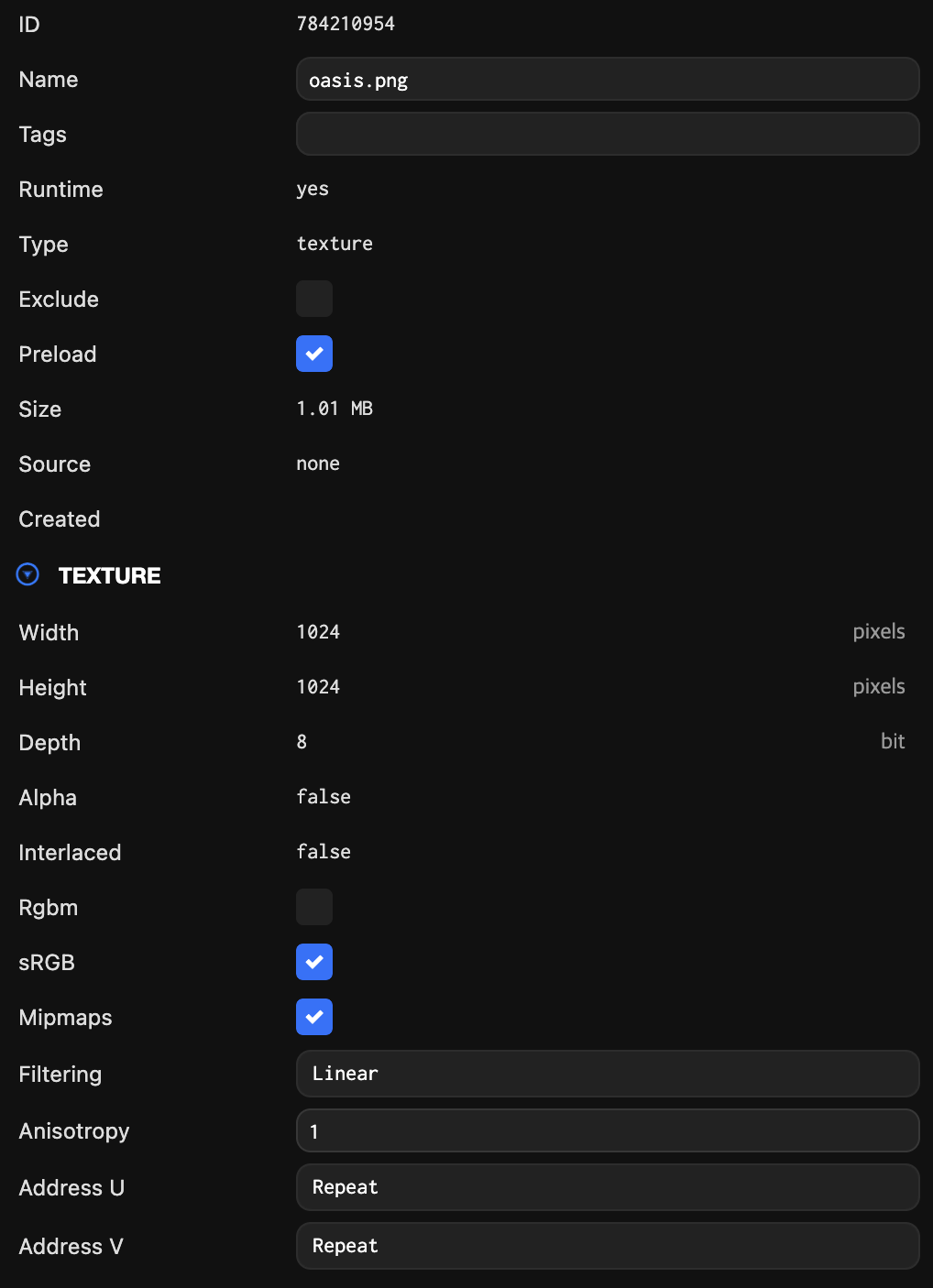
When you select a texture's thumbnail in the Assets Panel, it loads in the Inspector panel. You can select multiple textures and edit the entire selection simultaneously in the Inspector.
Textures share a standard set of asset properties (ID, name, tags, etc.). However, they also have texture-specific properties.
Texture Filtering
Texture filtering controls how the color of texture-mapped pixels is calculated. 'Point' applies no filtering, but 'Linear' interpolates the color of texels with adjacent texels. This produces better visual results, especially when the texture is minified (when the texture takes up fewer pixels on screen than texels).
Anisotropy
When textures are displayed on surfaces at oblique angles, quality can degrade and appear blurry. You can set an anisotropy value to solve this problem. See how different anisotropy values affect the appearance of the texture:
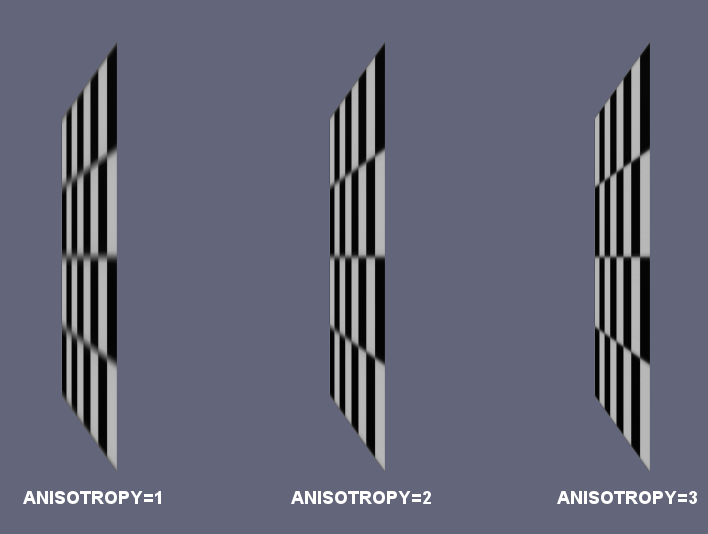
As anisotropy increases, so does the cost of sampling the texture on the GPU.
Texture Addressing
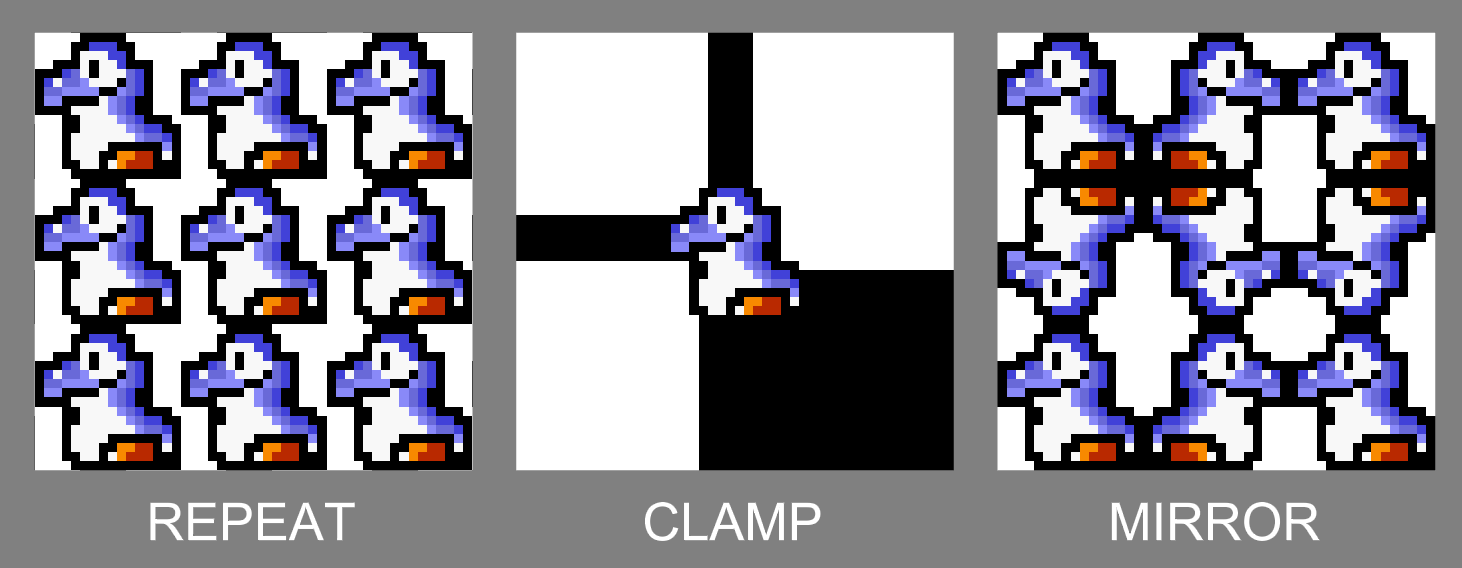
The texture addressing properties control how the texture is sampled for texture coordinates outside the 0 to 1 range. See how different modes affect the sprite below:
Maximum Texture Size
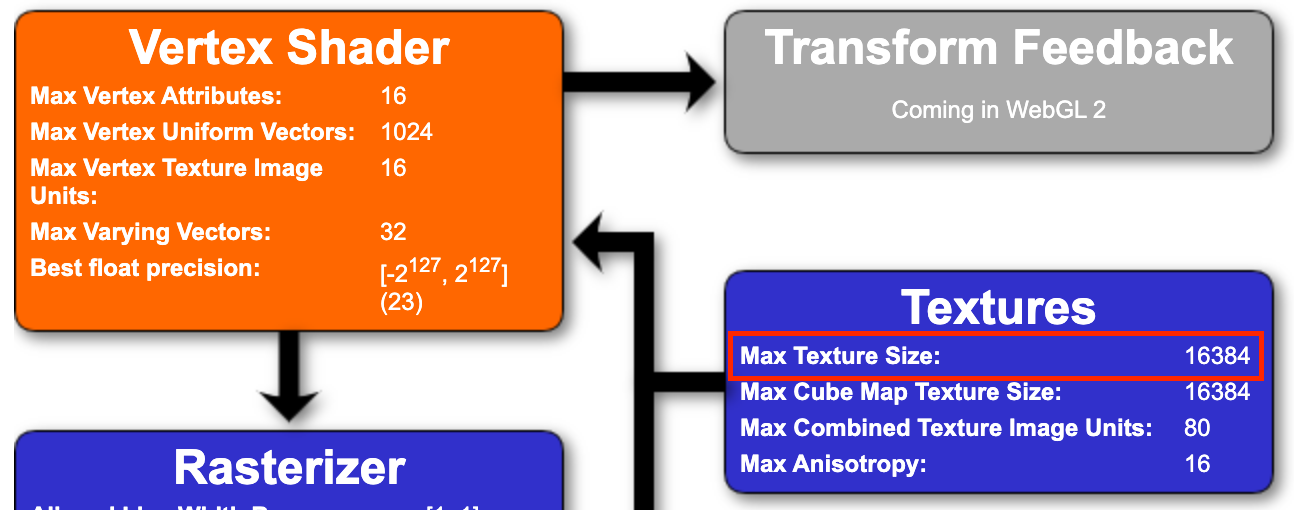
Different devices can support different texture sizes. You can check the maximum supported size using the WebGL Report for your device and browser.
For example, this is from a MacBook Pro 16-inch (2020) laptop with Chrome installed, which supports up to 16384x16384:
Meanwhile, a Samsung S7 mobile device only supports 4096x4096:
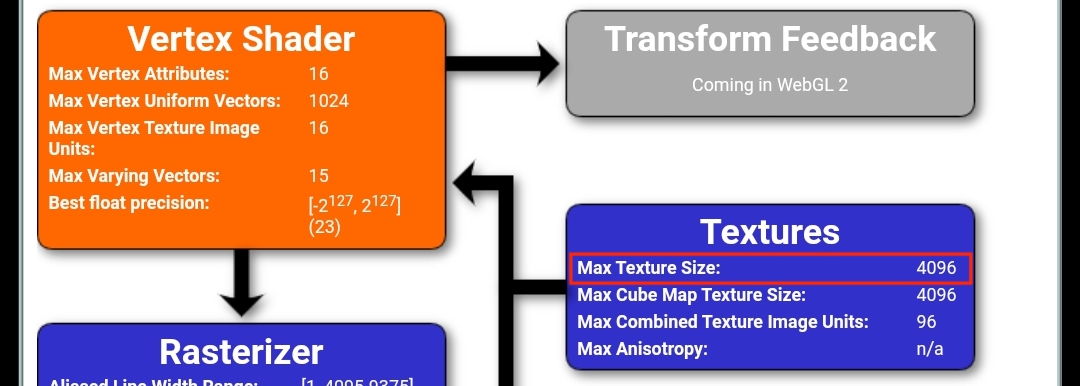
When you try to use a texture that exceeds the maximum texture size reported by WebGL in the engine, it will be resized to this maximum size at runtime. This is only performed for textures loaded from images (PNG, JPG, AVIF, WebP, GIF). Compressed textures cannot be resized at runtime and will fail to render if they are too large for the device.
If you want to avoid runtime size reduction, as of the time of writing (Friday, October 23, 2020), 4096x4096 is very widely supported, and some developers choose 2048x2048 to guarantee it works everywhere.