Image Generation
Learn how to use OasisW's AI image generation feature to create images for your project step by step.
1. Interface
Click the AI Image Generation button.

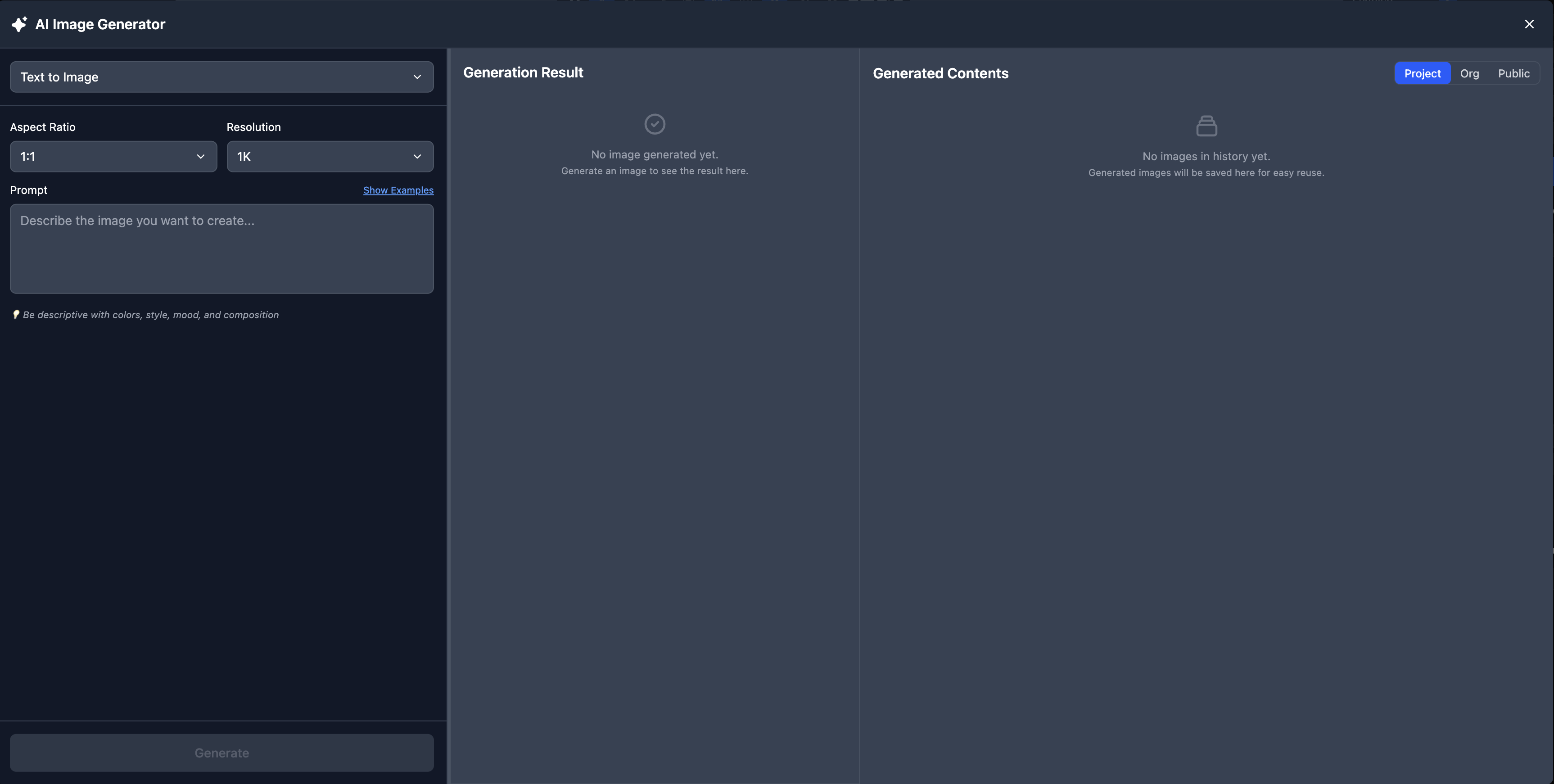
Generation Mode
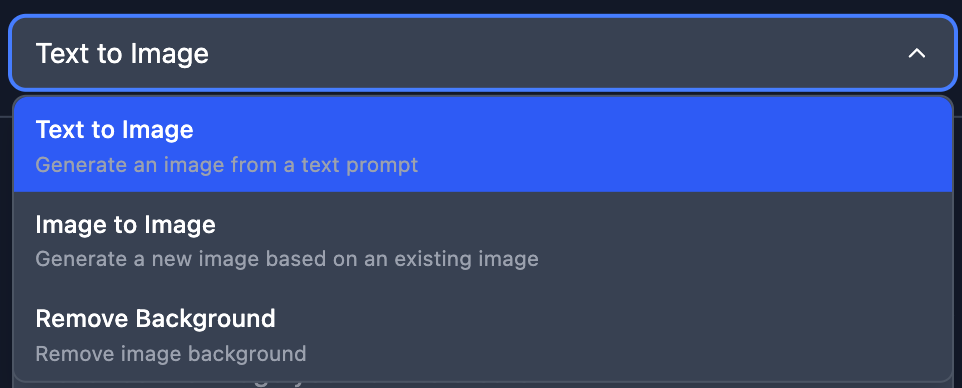
- Text to Image: Generate images by entering text prompts.
- Image to Image: Generate new images based on existing images.
- Remove Background: Remove the background from images.
Aspect Ratio & Resolution
- Aspect Ratio: Choose the image ratio.
- Resolution: Choose the image resolution.
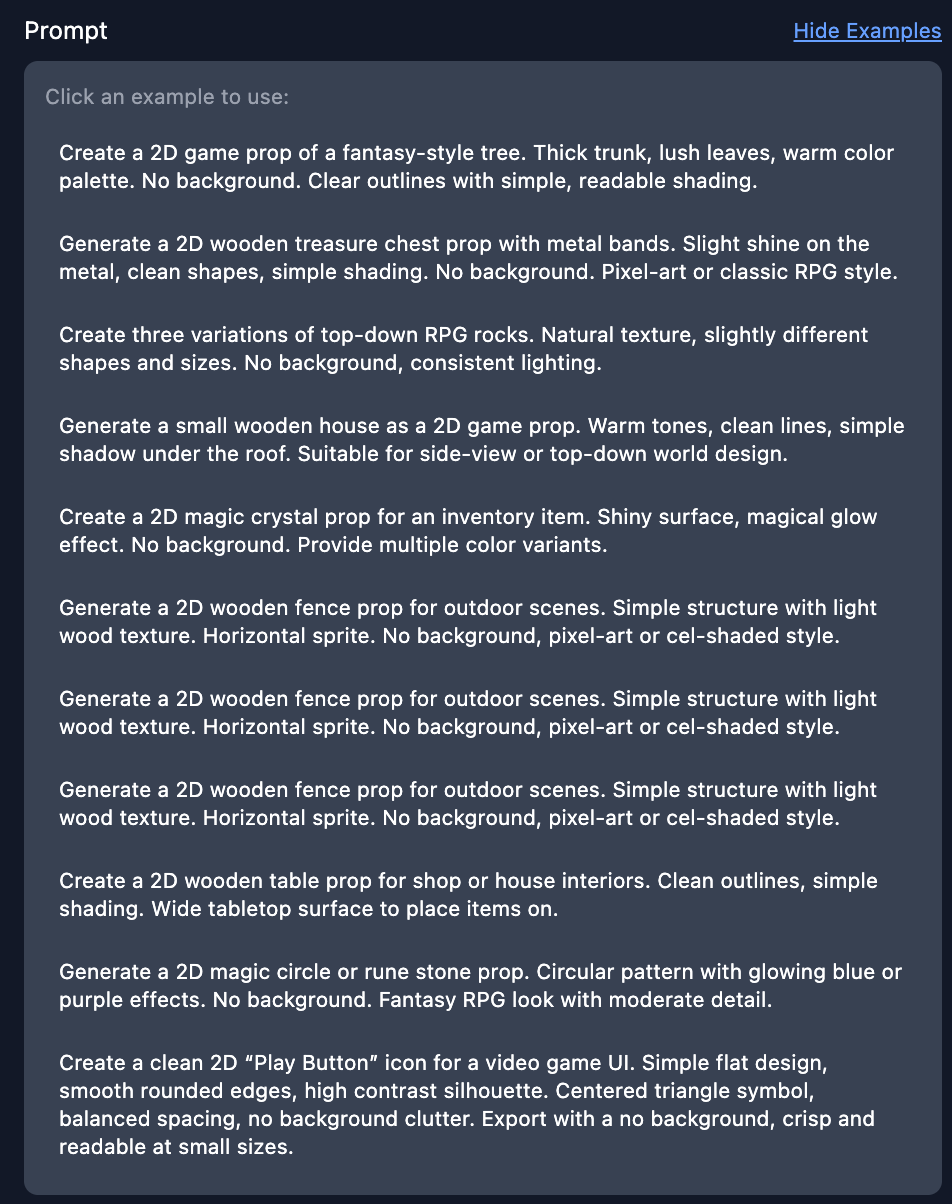
Prompt
- Show Examples: Click on example prompts to use them.
Generation Result
View the generated images.
Generated Images
- Project: View images generated in this project.
- Org: View images generated in the current organization.
- Public: View publicly available images.

- 1. Edit Asset Properties: Modify asset settings.

- 2. Add to Assets: Add as texture asset.
2. Text to Image
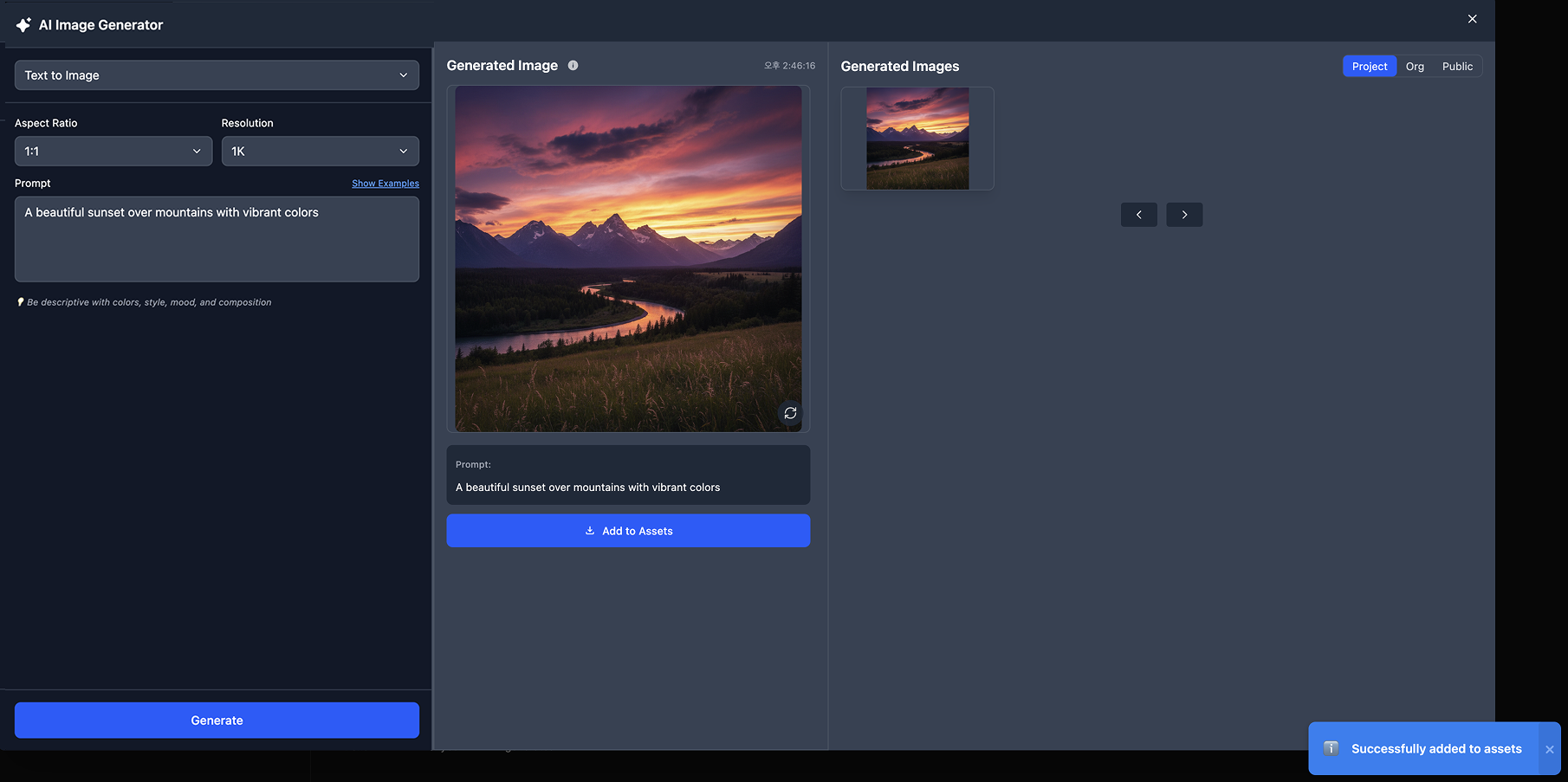
- Select the desired aspect ratio and resolution.
- Enter your desired command in the prompt field.
- You can select from examples in Show Examples to generate images.
- Click the Generate button to create the image.
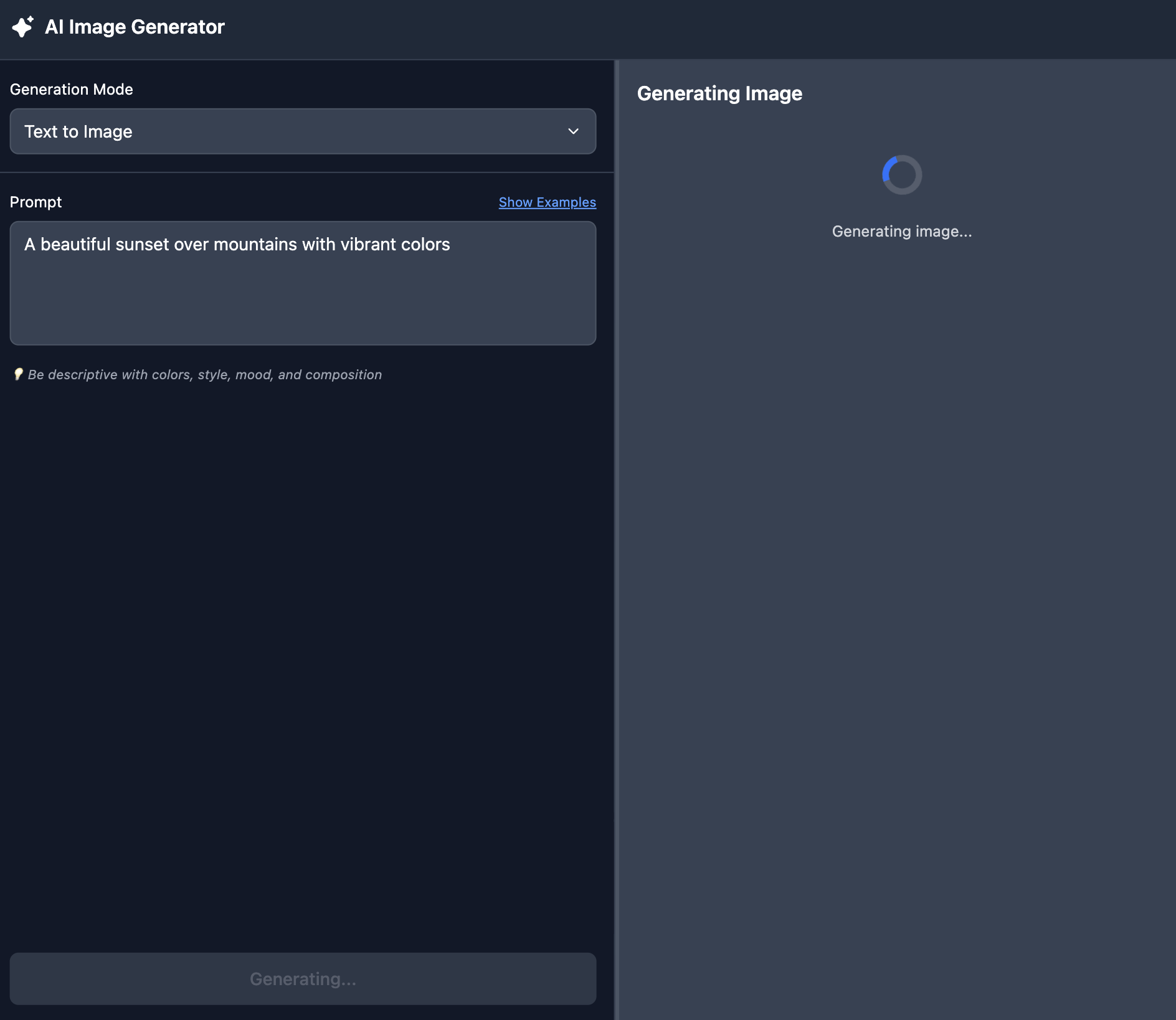
- Click the Add to Assets button to add as a texture asset.

3. Image to Image
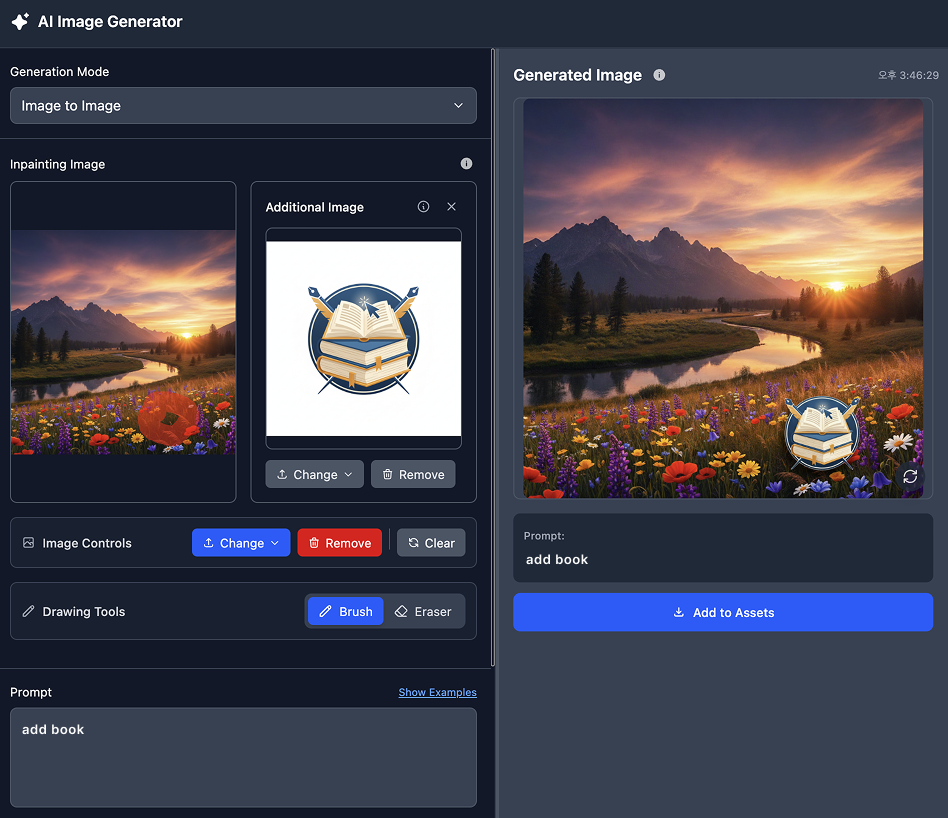
- Add your desired image to Inpainting Image.

- Click the + icon and add images of objects (sunglasses, flowers, hats, etc.) that you want to add to the original image.


- You can modify or remove images in Image Controls.

- Use Drawing Tools to mark the areas where you want to modify the original image, enter a prompt, and click the Generate button to create the image.
4. Remove Background
tip
You can directly access Remove Background by double-clicking an image in the asset view.
Add your desired image to Background Removal.
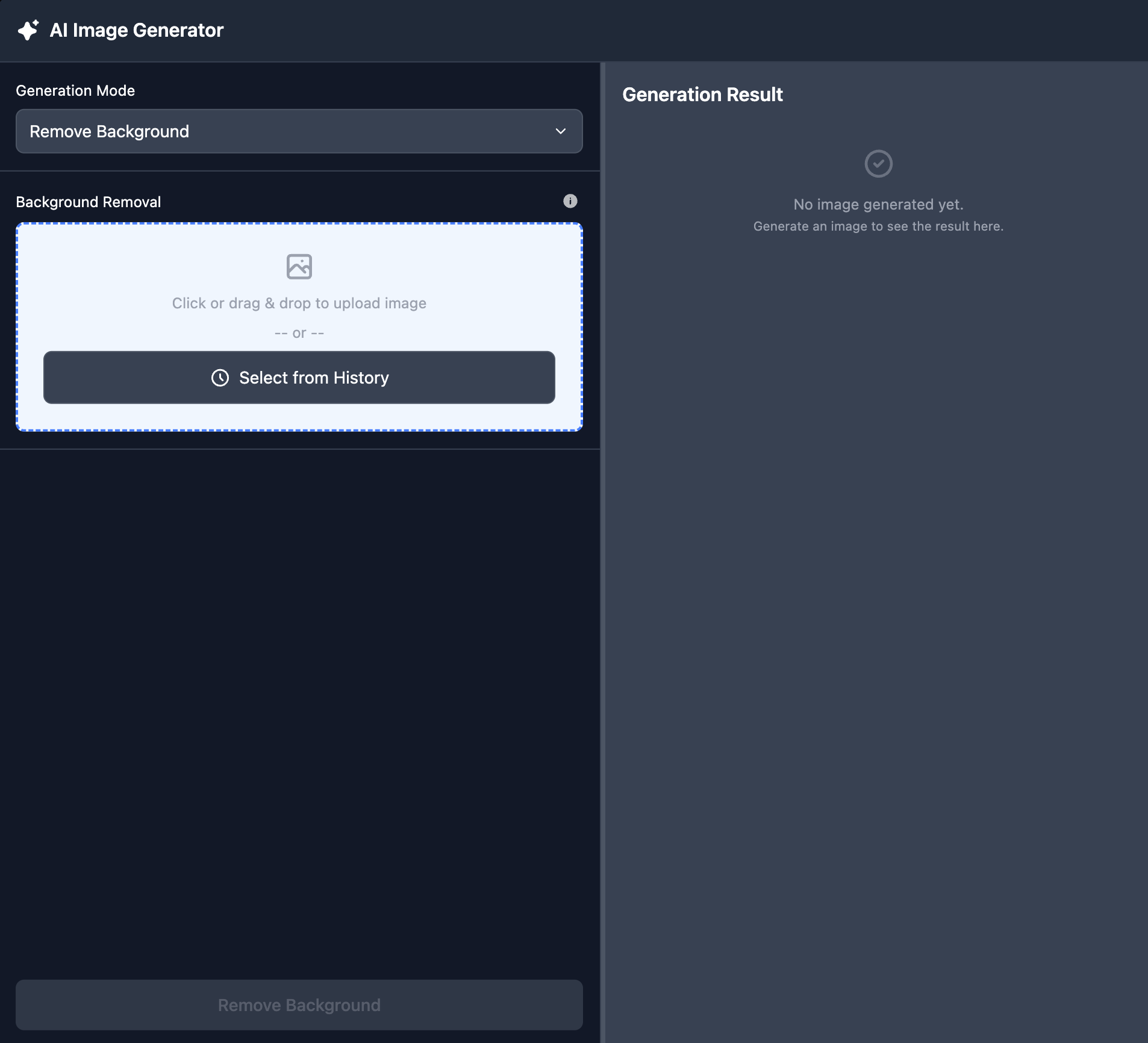
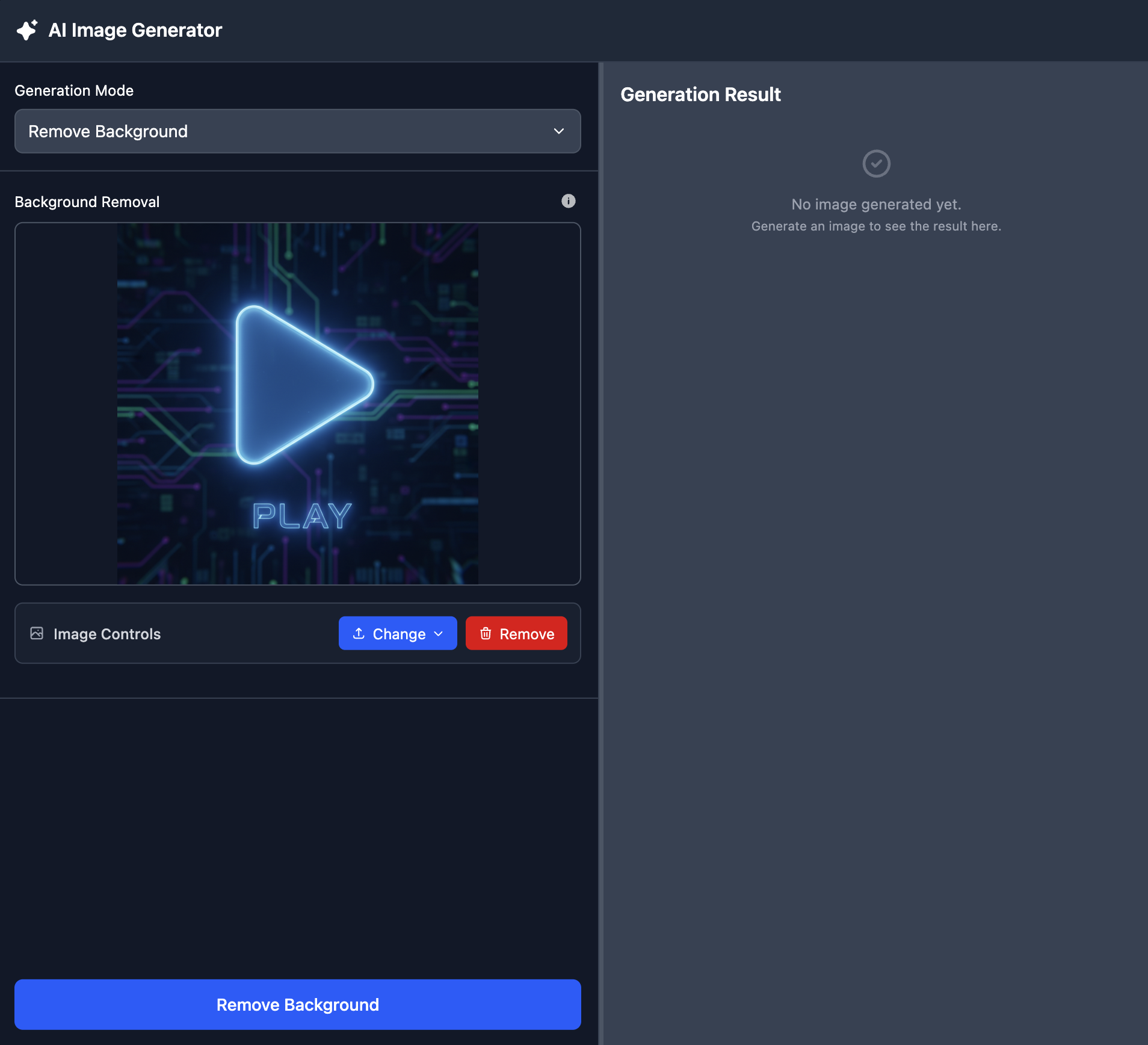
Click the Remove Background button to generate the image.
