Building Models
Building art and animations for OasisW can be done using almost any of the many available 3D modeling programs. For example: Blender, SketchUp, Autodesk 3D Studio Max, or Autodesk Maya.
OasisW is designed to import content most faithfully through the open-source glTF binary (GLB) format, so generally if a modeling application supports GLB, OasisW supports it too.
GLB import supports the following glTF features for very fast scene creation:
- Node hierarchy
- Standard materials
- Approved material extensions
- Animated skeleton and skinning data
- Morph targets
- Cameras
- Point light support
Therefore, you don't need to use special art tool plugins to target OasisW, and there's no OasisW-specific workflow to follow.
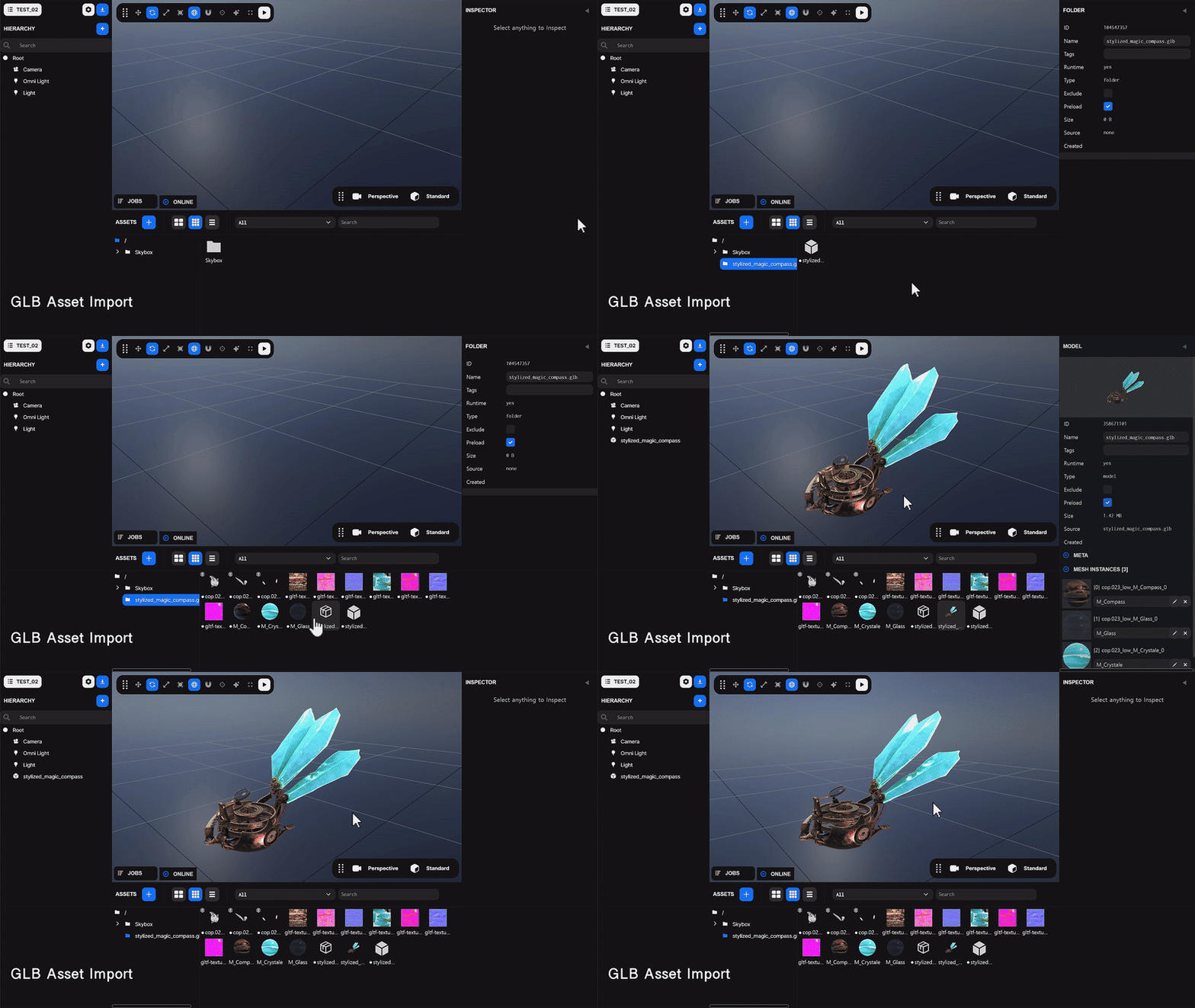
Artwork by MAR.COS.
OasisW also supports importing FBX files, another common exchange format. However, FBX materials are not imported as faithfully as glTF materials and may require some editing after import.
For the best experience and highest compatibility, we recommend using GLB whenever possible.
Modeling and animation programs to consider:
- Free options: Blender*, Wings3D, Voidworld, SketchUp, Sculptris, Daz Studio*.
- Low-cost paid options: 3D-Coat, NVIL, Hexagon.
- High-cost paid options: ZBrush, Autodesk 3D Studio Max*, Autodesk Maya*, Luxology Modo*.
* These programs can also create animations.
Programs to consider for texture creation:
- Free: Blender, Pixexix Free, xNormal, MaPZone, GIMP, Krita desktop, MyPaint.
- Paid: Substance Designer (includes Substance Painter and Bitmap2Material), Photoshop, Quixel NDO and DDO, CrazyBump, Pixexix Pro, Clip Studio Paint/Manga Studio, SERIF DrawPlus/PhotoPlus.
Many of the modeling programs listed above also allow texture painting. If you want more options, this external wiki page may be helpful. Some information may be outdated.
General Considerations for Building Meshes
There are a few things to know when building 3D scenes for OasisW, regardless of which modeling application you use.
- Meshes can be skinned to a maximum of 256 bones.
- NURBS meshes are converted to triangular meshes when converted to OasisW's native format.
Blender

Blender is an excellent free tool for 3D modeling and perfect for creating 3D assets for OasisW.
Blender supports exporting to GLB, FBX, and COLLADA, but the built-in export tools have some limitations.
Map Types
From Blender 2.71, both diffuse maps and normal maps of materials are exported to FBX files. If other map types are lost in the export, you'll need to set these maps in the material editor within the editor.
Texture Embedding
Embedded textures make importing much easier.
The Blender COLLADA export tool doesn't have the ability to embed textures in the exported model file.
The Blender 2.71 release features an improved FBX export module that enables multiple embedded textures directly from Blender. First, make sure the object renders correctly within Blender. When exporting to FBX, set 'Path Mode' to Copy and check the 'Embed Textures' box.
Alternatively, you can use the Autodesk FBX Converter to convert what you exported from Blender to have embedded media. Open the file in FBX Converter and save it again with the Embedded Media checkbox set.
There seems to be an issue with Blender 2.71's FBX export where it creates emissivity even though no emissive properties are set in Blender. This is not an issue with the OasisW engine. To avoid this in Blender, you can change the Diffuse color setting of the material to 0 (in the 'Material' tab of the 'Properties Editor'). Or you can simply reduce the emissivity within the OasisW editor.
Animation
From Blender 2.71:
Animations included in blend files are exported with the default fbx export tool settings and are compatible with the OasisW asset import pipeline. For multiple animations for the same model, you'll need to upload multiple fbx files - one for each animation. To save memory, you can either delete the model and textures from the blend file before exporting, or choose to export only the armature in the fbx export tool settings, or simply delete the duplicate 'model' target assets from the asset page of the project dashboard (you can view target assets by selecting 'target' from the dropdown menu on the asset page).
Learning Blender
There are many resources available on the web for learning how to use Blender. Here are a few we recommend:
Autodesk 3D Studio Max
Max Materials
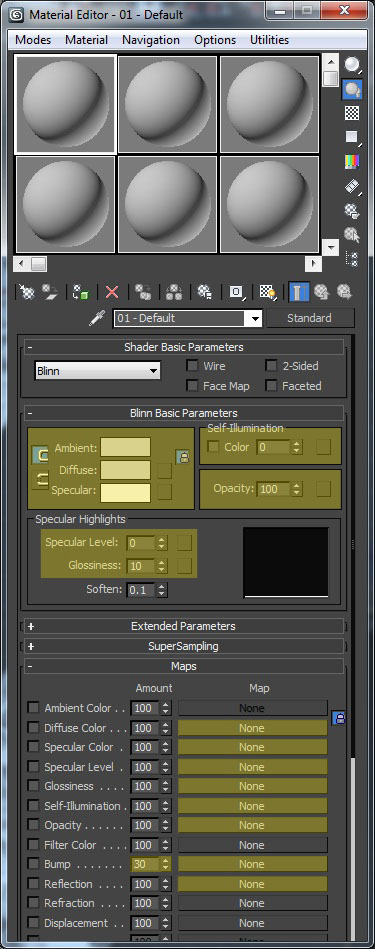
In Max, you should use the Standard material type, or the Multi/Sub-Object material type if the materials it references are Standard materials. The highlighted areas in the screenshot below show the settings that are respected when exporting to OasisW:
Supported Map Slots
OasisW interprets a subset of 3DS Max material map types when exporting. Maps can be in any format that 3DS Max supports, but if the map is not in a web format (i.e., JPEG, GIF, or PNG), it will be converted to these formats when exporting.
Diffuse Color
Assigning a Bitmap map to this slot enables diffuse mapping in OasisW materials. This essentially overrides the diffuse color set on the material (via the color picker). If the diffuse map has an alpha channel, it's used as per-pixel alpha values in the OasisW runtime.
You can also assign an RGB Multiply map to the Diffuse Color slot. This has the effect of enabling lightmapping, where Map 1 is the diffuse map and Map 2 is the lightmap.
Specular Color
Assigning a Bitmap map to this slot enables specular mapping in OasisW materials. This essentially overrides the specular color set on the material (via the color picker). This allows you to mask specular areas of the surface or tint specular highlights to different colors in different areas. If the specular map has an alpha channel, it's used to set per-pixel glossiness.
Specular Level
Assigning a Bitmap map to this slot enables per-pixel attenuation of the material's specular color. This essentially overrides the specular level set on the material.
Glossiness
Assigning a Bitmap map to this slot enables per-pixel glossiness on the material. This essentially overrides the glossiness set on the material.
Self-Illumination
Assigning a Bitmap map to this slot enables emissive mapping in OasisW materials. The emissive map can be full RGB (not limited to grayscale) and is essentially added to the surface lighting result. Therefore, black pixels in the emissive map add nothing to the pixel value. Everything else increases the brightness of the pixel.
Opacity
Assigning a Bitmap map to this slot enables opacity mapping in OasisW materials. Black pixels in the opacity map are completely transparent, white pixels are completely opaque, and gray pixels correspond to equivalent intermediate alpha values.
If the material has an opacity map, it overrides the alpha channel set on the diffuse map. Using the opacity map slot is less efficient than using the diffuse map's alpha channel. This is because two textures are created in the OasisW runtime instead of one, and the basic shader has to do a bit more work. However, if performance isn't an issue and using an opacity map is convenient, this feature is supported.
Bump
Assigning a Normal Bump map to this slot enables normal mapping. By default, the 'Amount' value of the Bump slot is set to 30. OasisW effectively ignores this value and treats it as if it were set to 100, so it's recommended to set this to 100 in Max as well so that rendering more closely matches real-time rendering.
There are various ways to create normal maps, and the main two differ in the format of the green component. For example, by default, 3DS Max expects a normal map for a brick wall to look like this:
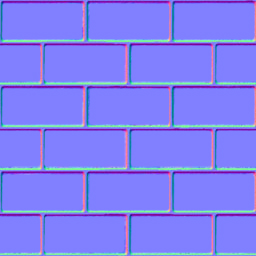
Notice the brighter areas at the bottom edges of the protruding areas. OasisW expects the green component (or Y component of each normal in the normal map) to be flipped. Load the file into Photoshop, select the green channel, and press Ctrl+I to invert the channel:
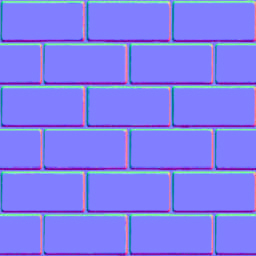
Now the lighting in OasisW will be consistent.
If the assigned normal map has an alpha channel, it's treated as a parallax map where the alpha channel is interpreted as a height map. Brighter areas in the height map are treated as 'higher' than darker areas.
Reflection
Assigning a Bitmap map to this slot enables sphere mapping in OasisW materials. The bitmap should look like this:
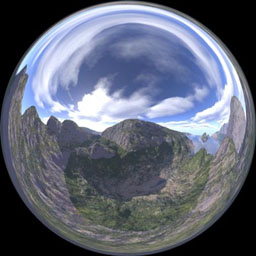
Sphere mapping is one of the cheapest and least 'convincing' forms of reflection mapping, but it's sufficient to provide satisfactory gloss on surfaces in many scenarios.
Autodesk Maya
Maya Materials
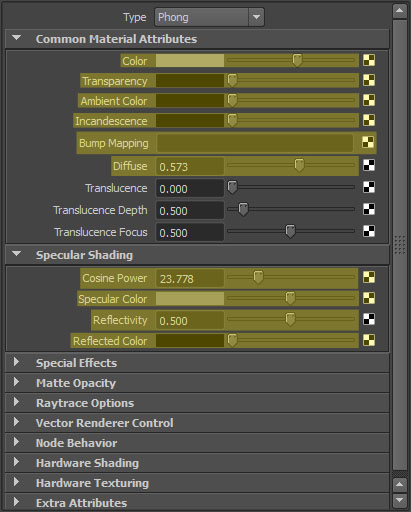
In Maya, you should use standard material types: lambert, blinn, phong. The highlighted areas in the screenshot below show the material settings that are respected when exporting to OasisW: