Animstategraph Assets
Animstategraph assets are used to configure different sets of animation states, which are all the various ways a model can be animated. These can be used to define each of these animation states, determine when each state should be played, and how states transition and blend with each other. Animstategraph assets do not store or connect actual animation assets, but instead serve as a template for how animation assets should be configured. Actual animation assets are connected to animstategraph animation states through the anim component.
The system is designed so that a single animstategraph can be used by many different entities, each with their own unique set of animation assets. For example, there might be an animstategraph asset that manages the animation of humanoid character movement. This single asset can be used by human entities, elf entities, and dwarf entities. Each of these entities can connect their own character animation assets while maintaining the same animation behavior as each other.
Therefore, these assets are state machines for the animation behavior of models and control the flow of animation sequences throughout an entity's lifecycle. A simple animstategraph asset used to define the behavior of a wheel might only define two animation states: static and spinning. This asset can be defined to control when the wheel starts and stops spinning, how long it spins, the wheel rotation speed, and how abruptly it starts/stops. More advanced assets can be used to combine various animation states to create complex humanoid character animation behavior.
When you select an animstategraph asset in the editor's asset panel, the animation state graph editor view opens:
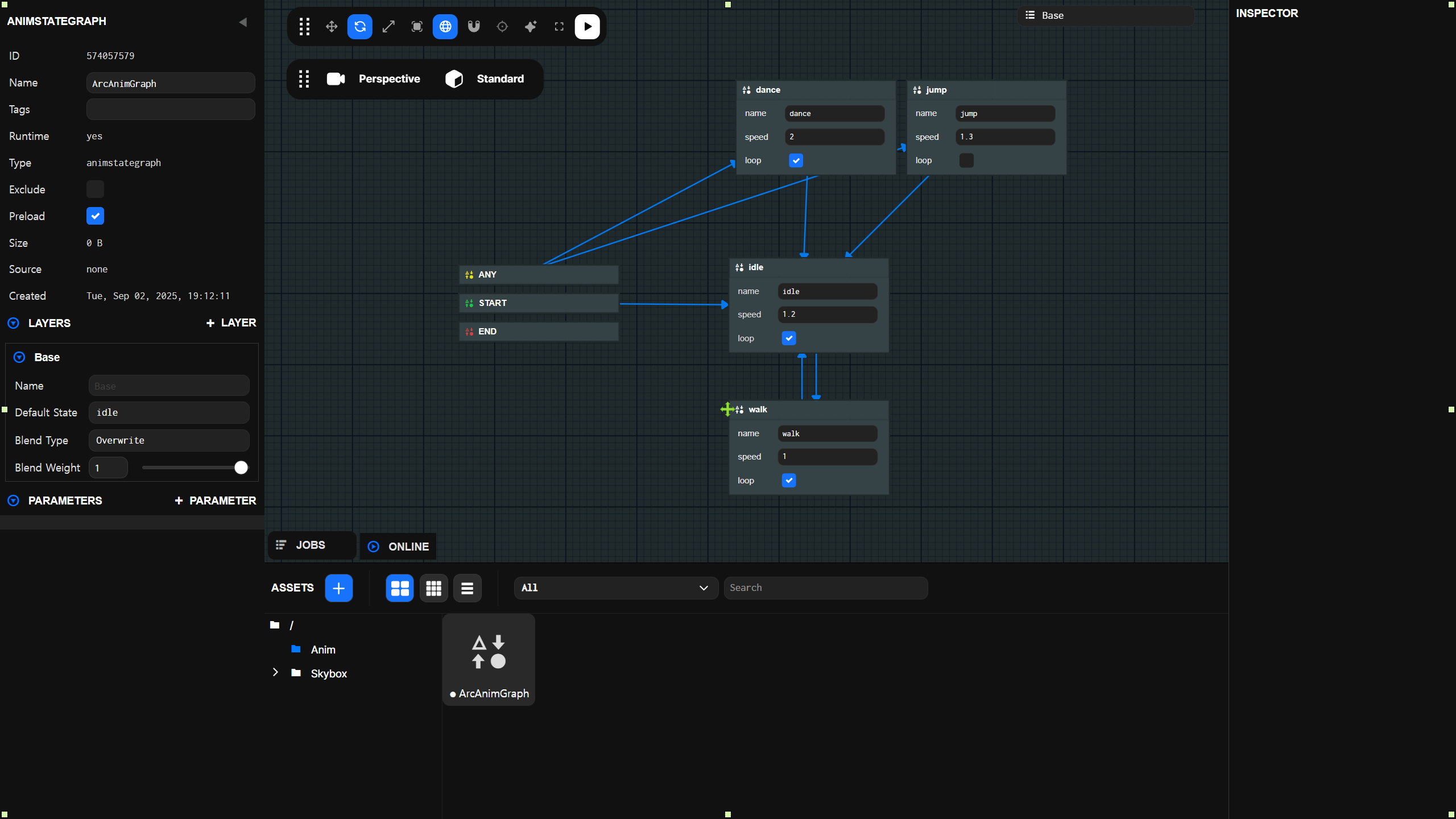
Within this view, you can edit the animation state graph. The following sections will highlight how various elements of animstategraph assets can be used to define specific animation behavior.
States
Essentially, states are used to specify which animation should be played at a given time. An animation state graph can only be in one of these states at a given time.
There are four types of states in the state graph. Along with animation states, there are START states, END states, and ANY states. Only animation states can be created and deleted by users, and only these are connected to animation assets. Other states are used to control flow through the state machine.
Animation States
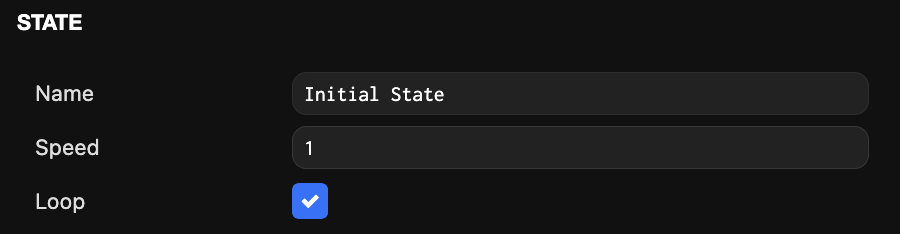
Animation states define playable animations such as 'Idle', 'Jump', 'Walk'. New animation states can be created by right-clicking on the empty canvas behind the state graph and selecting 'Add new state' from the menu. The editor targets the newly created state and displays an inspector panel on the right. Within this inspector, you can modify the following state variables:
| Variable | Description |
|---|---|
| Name | The name by which this state will be called. Used to find, edit, and play states through scripts. Names must be unique per state graph layer. |
| Speed | The playback speed of the animation connected to this state. |
| Loop | Whether the animation connected to this state should loop during playback. If set to false, the animation will pause at the last keyframe until this state ends. |
START State

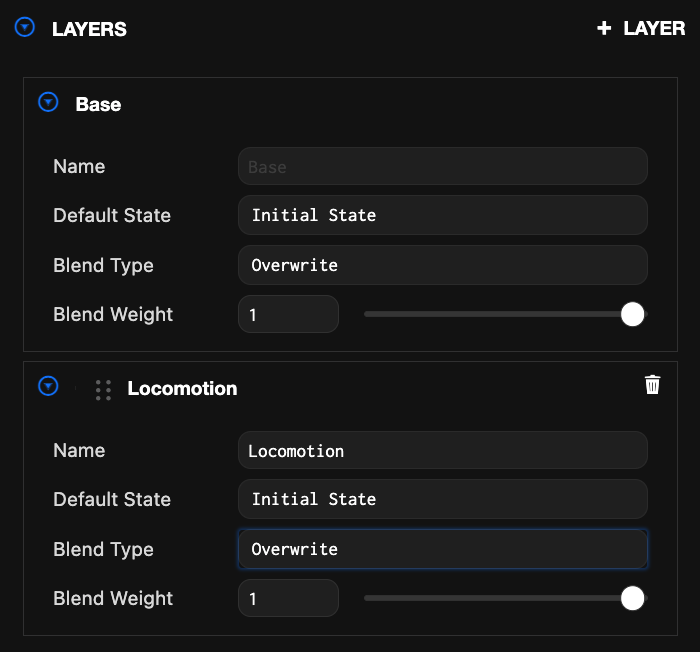
The START state is the entry point for all state graphs. When the anim component starts playing the assigned anim state graph, it first enters this state and then transitions directly to the connected animation state. This animation state is called the default state and can be selected through the layer panel here:
You cannot create other transitions from or to the START state. It can only be re-entered by transitioning from the END state.
END State

The END state marks the exit from the current state graph. If an animation state is set to transition to the END state, the system moves directly to the default animation state connected to the START state. This is useful for creating cyclic flow through the graph while arranging the graph in a linear manner. You cannot create transitions from the END state to other states. It always transitions directly to the START state.
ANY State

This state is used to create transitions that can be activated while the system is currently in one of the other animation states. All transitions triggered from this state are blended as if they were directly connected from the currently active animation state. You can create transitions from the ANY state but not to it.
This is useful for setting up transitions that you want to activate regardless of which state you're currently in. For example, there might be a jump state that can be reached from both idle and walk states. Instead of setting up transitions from both idle and walk states to the jump state, you can set up a transition between the ANY state and the jump state.
Transitions
Transitions define how the anim state graph can move from one animation state to another. They can be created by right-clicking on an animation state and selecting Add transition from the context menu.
You can also control how the animations of transitioning states are blended by setting the variables of a given transition.
The available transition variables are:
| Variable | Description |
|---|---|
| Duration | The duration of the transition in seconds. |
| Exit Time | The time to exit the source state and enter the target state. Provided as normalized time based on the source state's duration. If no value is provided, the source state can exit at any time with this transition. Values less than 1 make the transition available at that time during all loops of the source state. |
| Offset | If provided, the target state starts animation playback at this time. Provided as normalized time based on the target state's duration. Must be between 0 and 1. |
| Interruption Source | Defines whether other transitions can interrupt this transition, and which transitions from the current or previous states can do so. |
You can create multiple transitions between two animation states with different values and conditions set. The priority of these transitions can be reordered in the transition inspector after selecting the transition's arrow in the graph. The priority order determines which transition the state graph uses when multiple transitions satisfy their conditions.
Parameters
Parameters of an anim state graph are variables used to control the flow of animations during runtime. These variables can be accessed through scripts and set to new values at any time. This is how users can control animation behavior throughout an entity's lifecycle.
New parameters can be added to the state graph through the parameters panel in the left inspector:
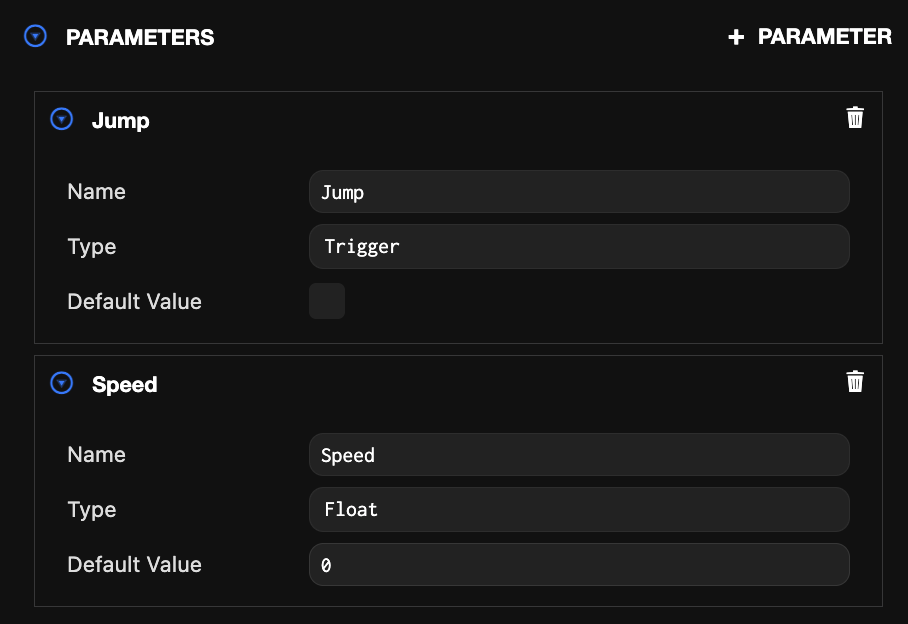
Each parameter has three variables that can be set:
| Variable | Description |
|---|---|
| Name | The name by which this parameter will be called. Used to find and set parameters through scripts. Names must be unique per state graph. |
| Type | The type of variable the parameter contains. One of Boolean, Float, Integer, or Trigger. The Trigger type works like Boolean but has the special property of being reset to false after being used to successfully activate a transition. |
| Default Value | The value of the parameter variable when the state graph starts. |
The way these control the state graph is through transition conditions. Each transition in the graph can have a list of conditions that define when the transition is available in the system. A state cannot be passed to another state through a given transition unless all conditions are met.
Each condition consists of a conditional statement that compares the current value of a parameter variable with a given value of the condition using a specified operator. For example, the following condition:

Can be used in a transition between Idle and Jump animation states to make the character jump only when the 'Jump' parameter is set to true through a script.
Layers
So far, animstategraph assets have been discussed in the context of editing a single animation state graph. However, sometimes it may be necessary for a single model's animation to be driven by multiple separate state graphs, each with their own unique defined behavior. For example, you might animate the protagonist's movement and locomotion in a single layer while animating facial expressions in a separate layer driven by its own state graph and parameters.
When an animstategraph is created, it comes with a single default layer. This layer cannot be deleted and will be the only layer needed in many scenarios. However, if you want to create other layers, you can do so by selecting the new layer button in the layer panel on the left side of the state graph view:
You can then switch to editing this layer by selecting it from the layer selection dropdown in the top right of the graph view:

Layer Blending
By default, layers animate the model in the order they were created in the layer panel. All animation values set on the model's bones are overwritten by subsequent layers. If you want to blend the animation values of layers together instead, you can set the layer's blend type to Additive instead of the default Override:
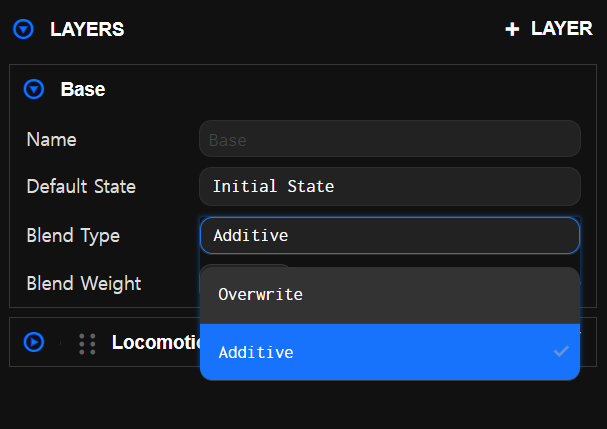
The blend weight value of each layer is used to determine how much each layer should contribute to the final animation when blending multiple layers. These blend weights can be adjusted at runtime in game scripts to update the layer's blend in real-time:
- Classic
var AnimationBlending = pc.createScript('animationBlending');

// initialize code called once per entity
AnimationBlending.prototype.initialize = function() {
    this.entity.anim.on('smile_start', function (event) {
        this.entity.anim.findAnimationLayer('smile').weight = 1;
    }), this);
    this.entity.anim.on('smile_end', function (event) {
        this.entity.anim.findAnimationLayer('smile').weight = 0;
    }), this);
};
When masking layers, you can set the layer's blend type to Additive to blend animations that only control parts of the model's bones. Updating the blend weight in real-time as described above creates smooth blends between animations from different layers. This is particularly useful when animating characters that need to perform different actions using the upper and lower body. For example, there might be a shooting animation that blends in and out on the character's upper body while keeping the lower body free for various movement animations like walking and running.
All layers set to Overwrite completely replace the animation values of the model's bones animated on that layer. In these cases, previous layers are not considered when generating the final animation.